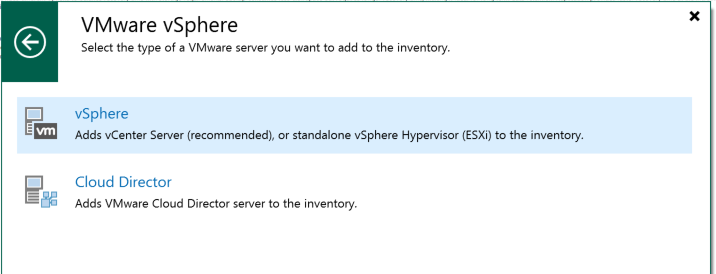
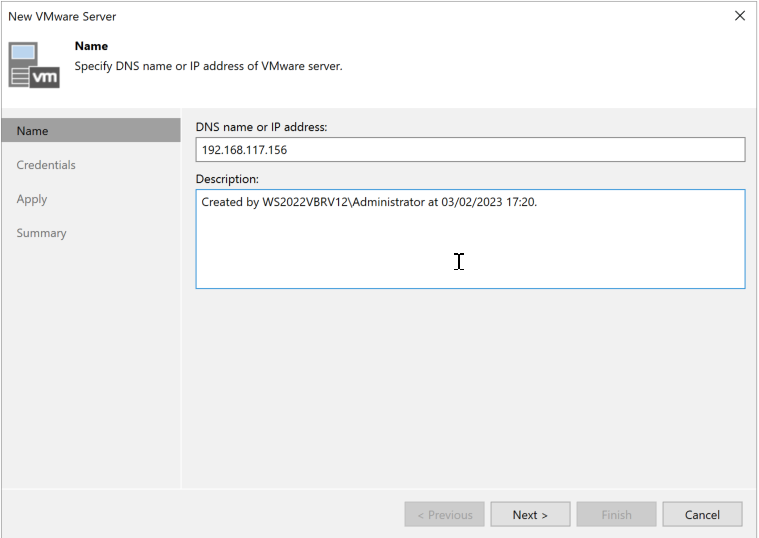
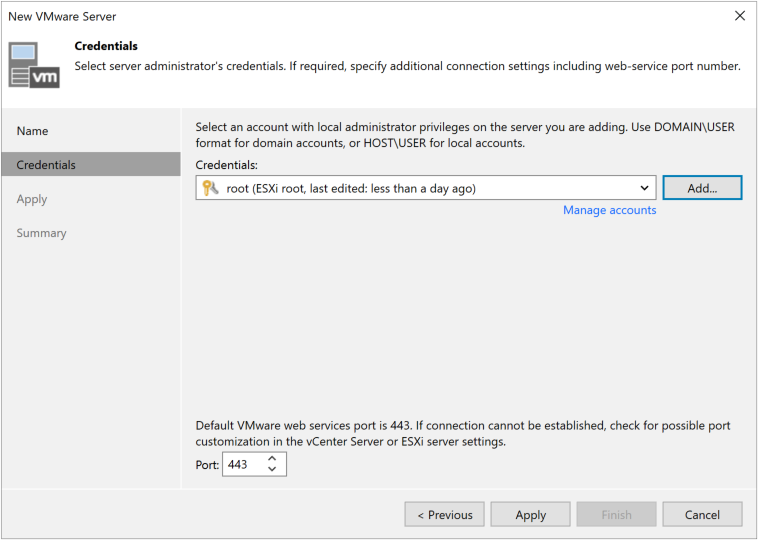
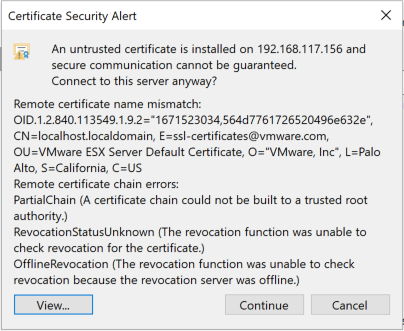
Here’s a simple screenshot walkthrough showing how to add an ESXi server to Veeam B&R v12 so we can back up its virtual machines. We’ve completed the initial configuration. Now let’s add a source to back up:
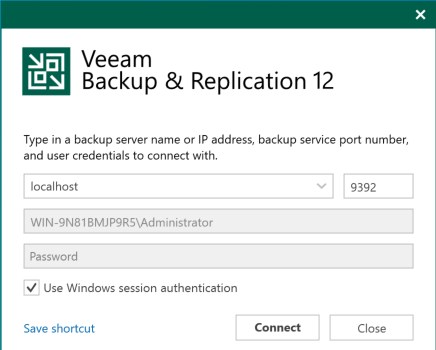
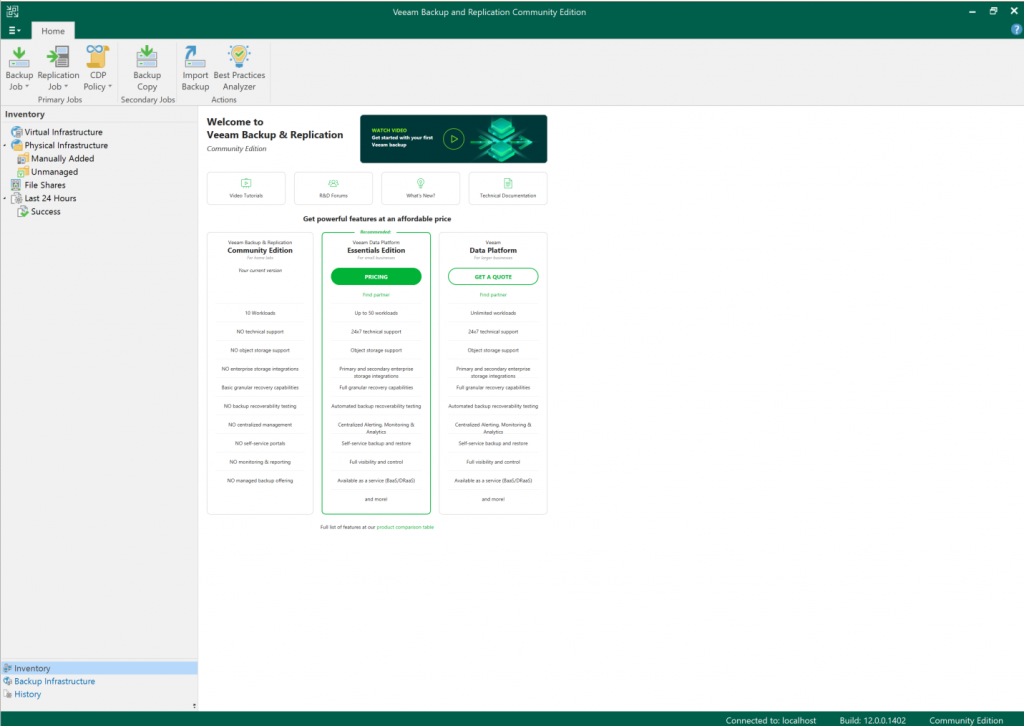
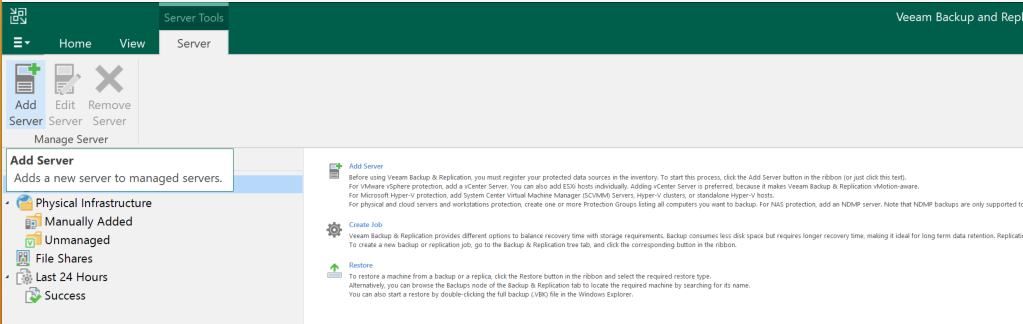
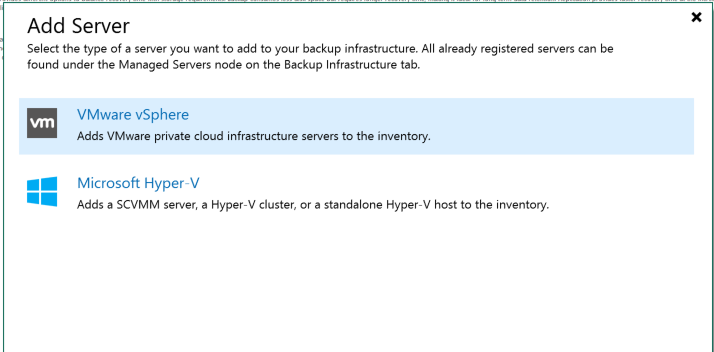
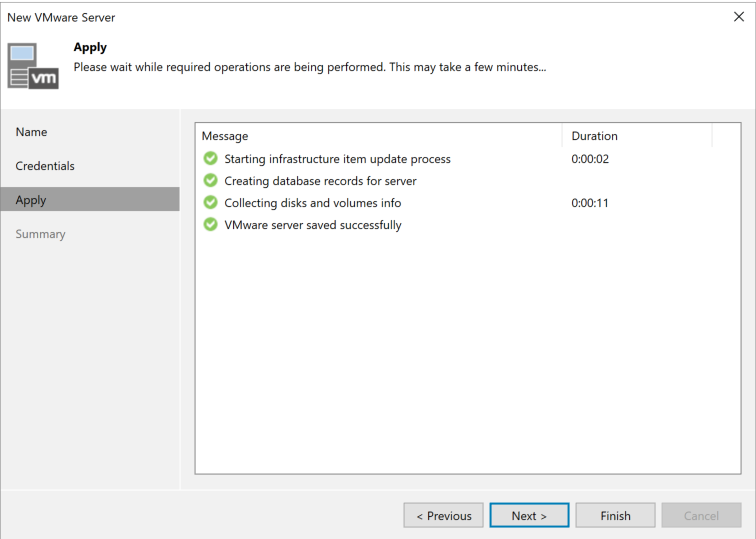
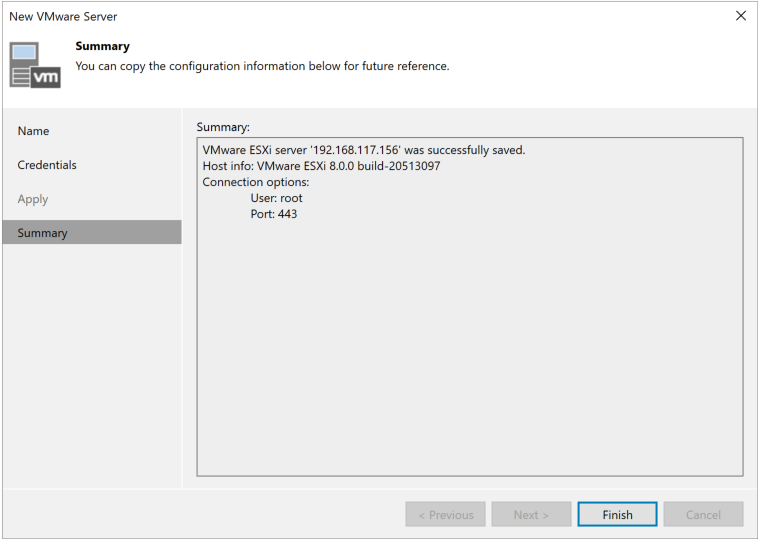
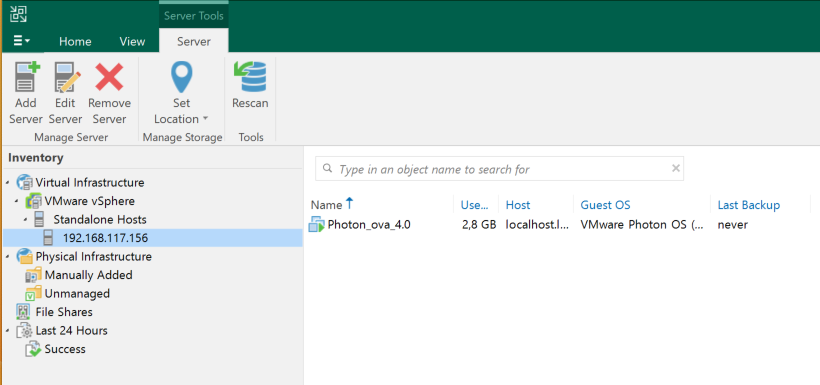
Open the Veeam B&R v12 console.Home screenIn the Inventory menu at the bottom left, select Servers, then click Add Server at the top.Follow the wizard.If the password hasn’t been added yet, click Add, enter the username and password, and continue through the wizard.It will ask you to add the certificate. Continue.Here it is. In the Inventory menu, under Standalone Hosts, you can see the added host. Click it to view the virtual machines it contains!
Now we can start creating backups, replicas, and more.