Here are a few screenshots of the new installer for VBR 12.0.0.1402.
I have to say, they’ve made it look great and made installation easier than before…
Once the ISO is downloaded, open it and start the installation. Let’s follow the screenshots…
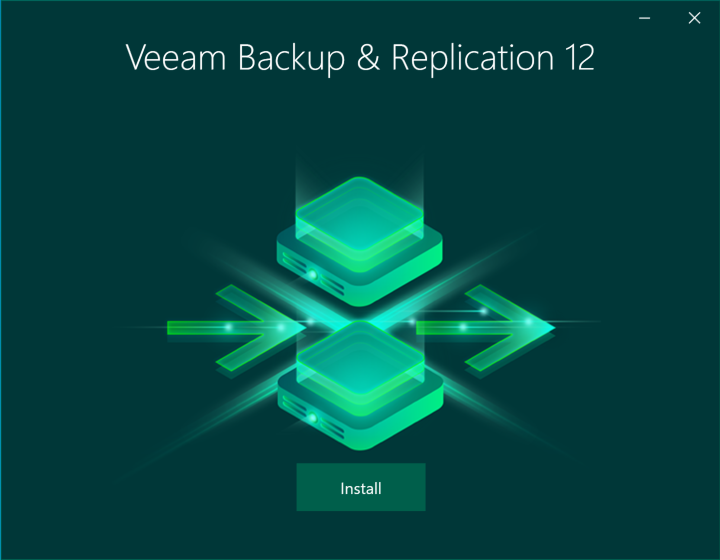
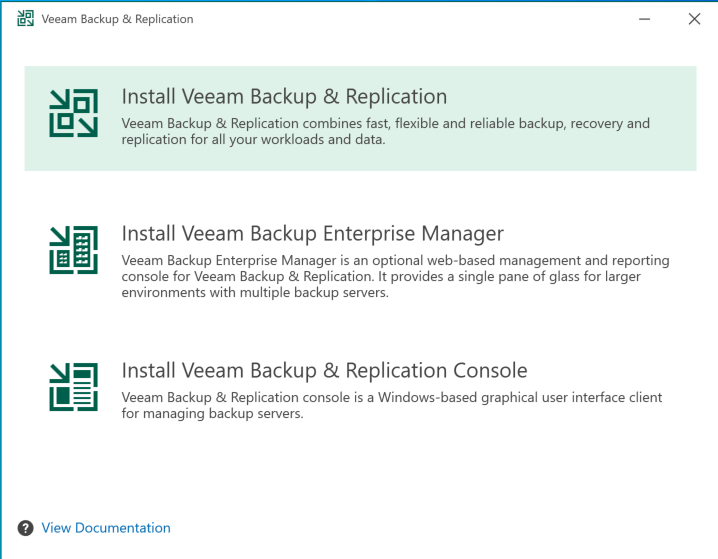
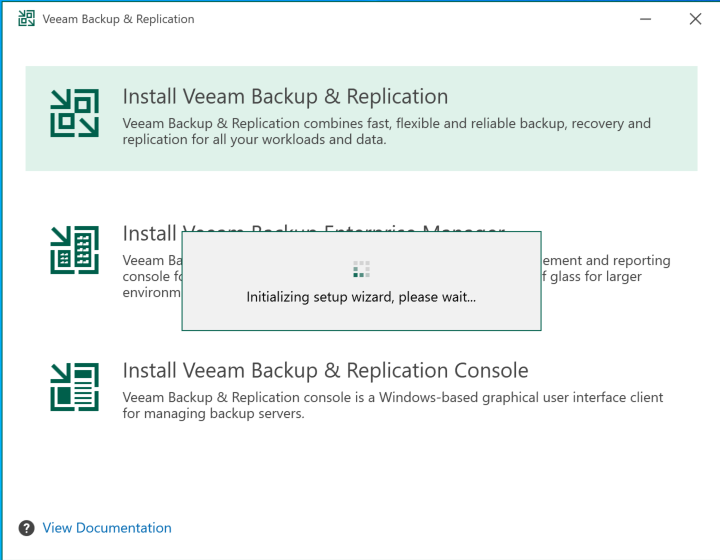
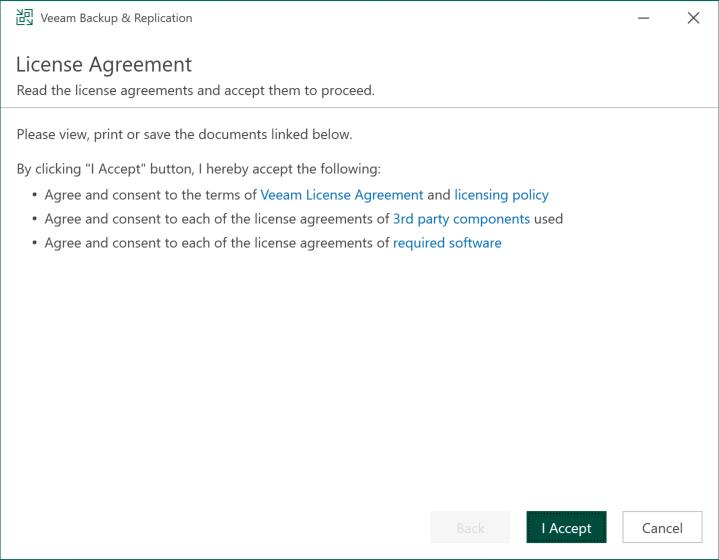
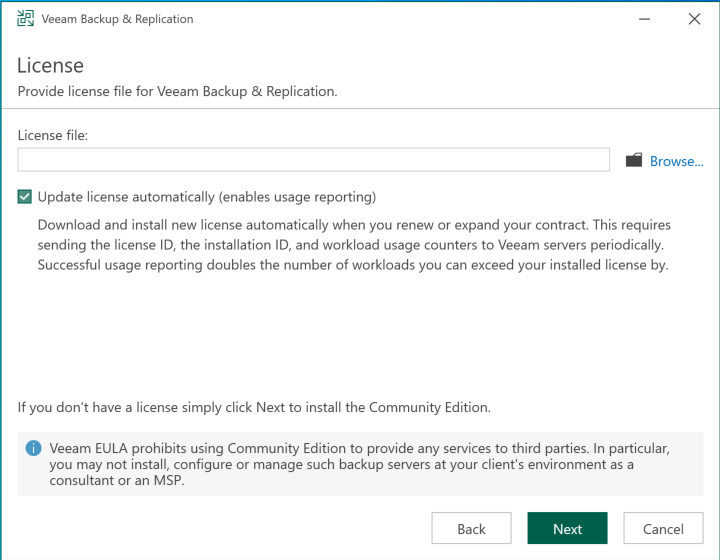
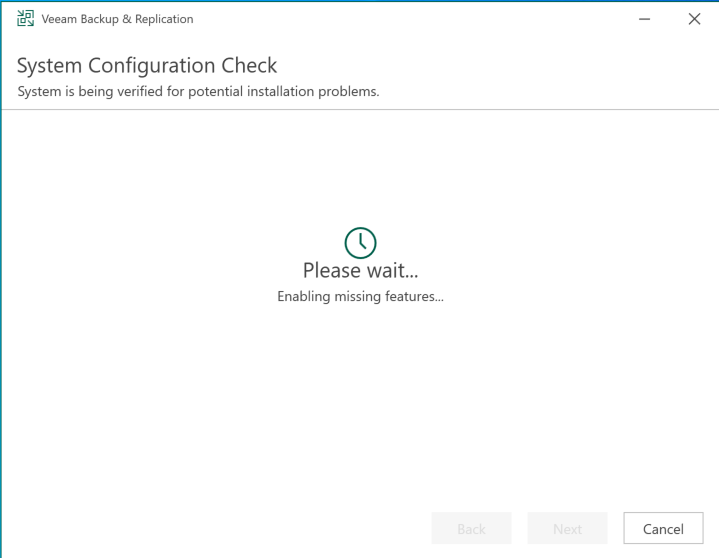
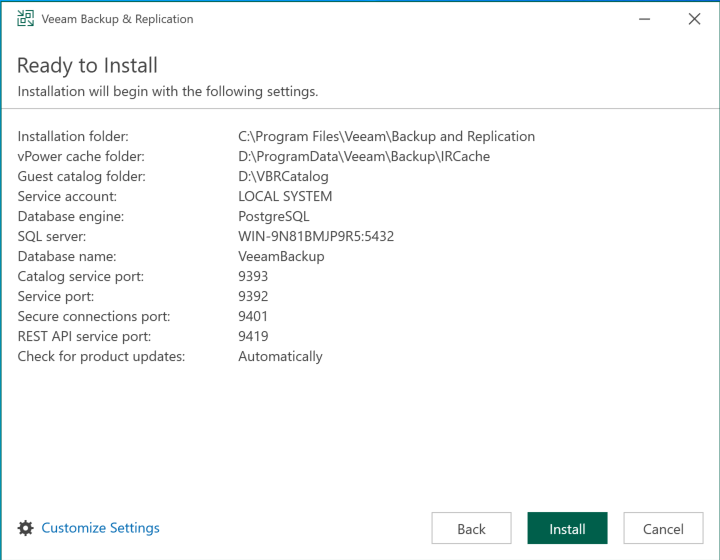
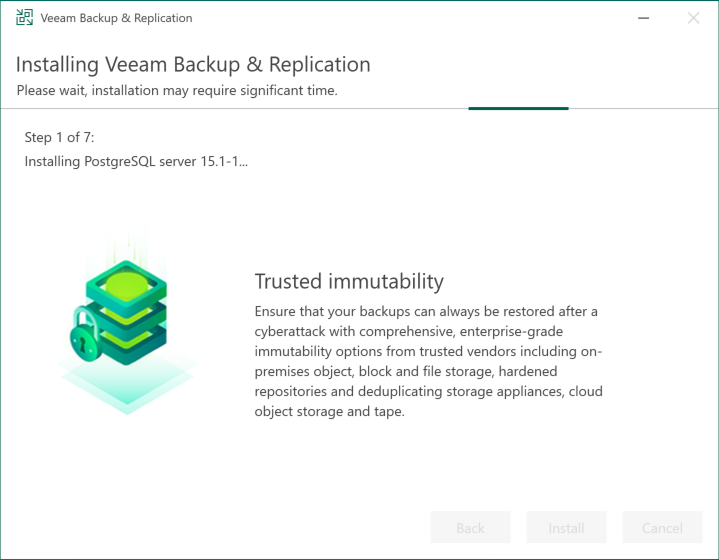
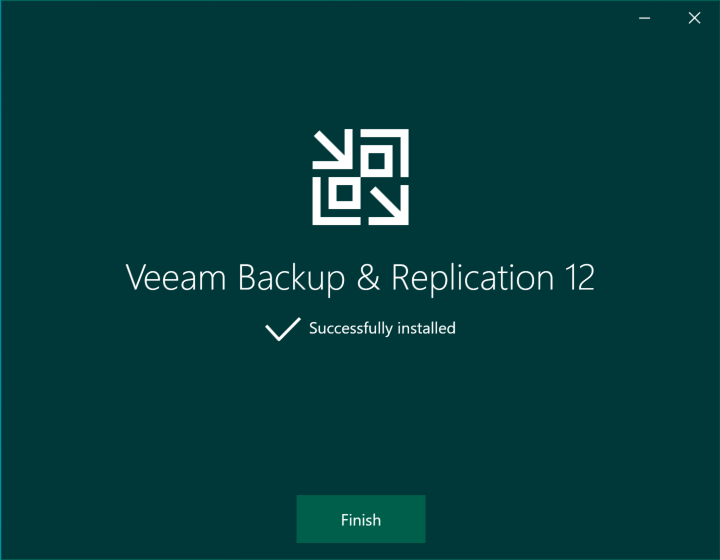
That’s how simple it is.
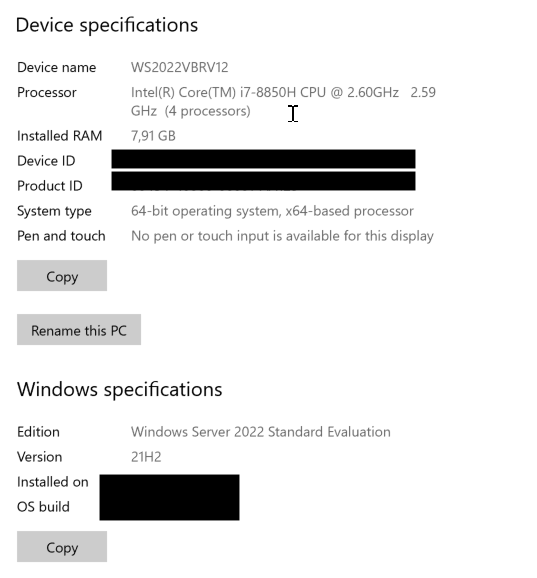
Here are a couple of screenshots showing the specifications of the machine where I installed Veeam v12, for your reference.
I usually create two partitions: one for the OS and Veeam database, and another for Veeam’s indexes, metadata, and local repository. The installer assigns the partitions automatically. I like to keep them separate so space issues on one volume don’t affect the OS, and vice versa.