
First, this is just for fun and was set up in my lab for testing.
I’d been thinking about this for a while. Email notifications are fine, but when your inbox is full and you receive 100 or more messages a day, important ones can get missed. I wanted a way to receive important alerts outside of email, which is how I came up with the idea of getting Veeam notifications through Telegram!
Let’s take it step by step. First, we’ll create a Telegram bot to receive messages, then route them to a group chat or somewhere else:
In Telegram:
- Type @BotFather in the Telegram search bar.
- Choose the first option, marked with a red verification check (this confirms it is Telegram’s official bot).
- Click START
- Type the command /newbot or click it in the list of commands shown in the chat.
- Next, enter a name for your bot and press Enter (for example, Telegram_Notifier).
- You’ll now be asked to set a username, which must end in “bot” (for example, telegramnotifierBot).
- Done! Save the token somewhere safe; we’ll need it for authentication later. Click the link to your new bot to open its chat.
- Now we need our Telegram ID, so we’ll use another bot:
Open IDbot and enter the /getid command.
It will reply with your ID: …
Make a note of it too.
In Windows, I created a PowerShell file called telegram.ps1 with the following content:
Function Send-Telegram {
Param([Parameter(Mandatory=$true)][String]$Message)
$Telegramtoken = "AQUÍ DEBEIS PEGAR VUESTRO TOKEN"
$Telegramchatid = "AQUI EL ID"
[Net.ServicePointManager]::SecurityProtocol = [Net.SecurityProtocolType]::Tls12
$Response = Invoke-RestMethod -Uri "https://api.telegram.org/bot$($Telegramtoken)/sendMessage?chat_id=$($Telegramchatid)&text=$($Message)"}

$A = Get-WinEvent -MaxEvents 1  -FilterHashTable @{Logname = "Veeam Backup"}
$Message = $A.Message
$MachineName = $A.MachineName
$Source = $A.ProviderName

Send-Telegram $Message
Save it wherever you like. Edit it to include your TOKEN and ID!
Next, we’ll use Windows Task Scheduler. I’ll include screenshots to make it easier.
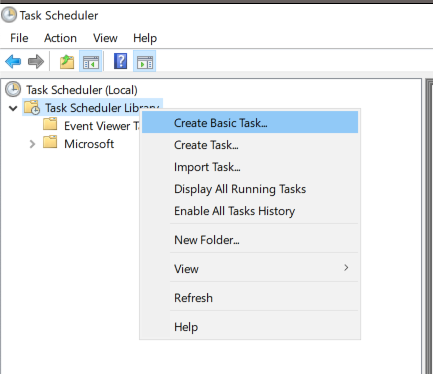
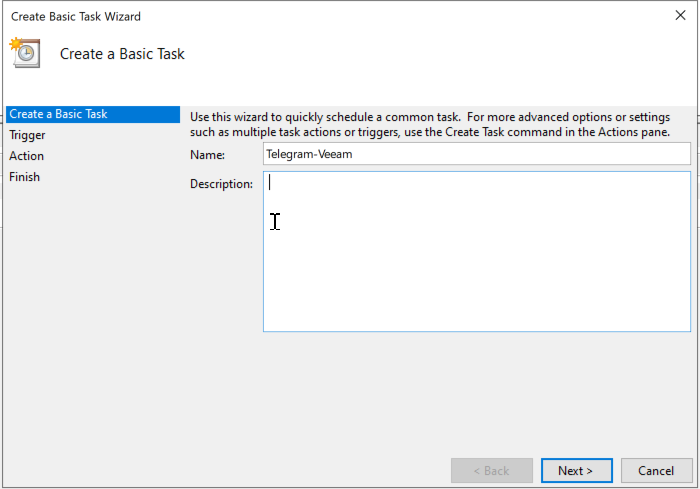
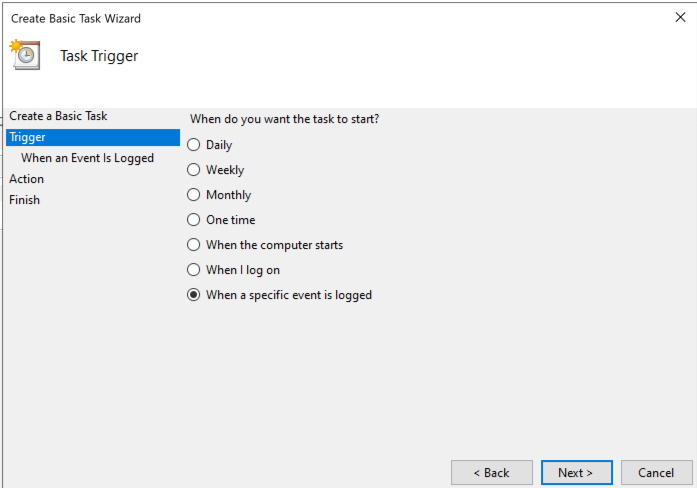
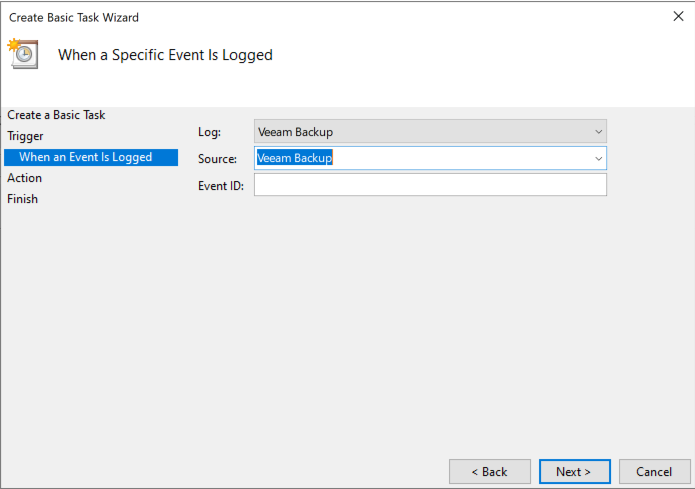
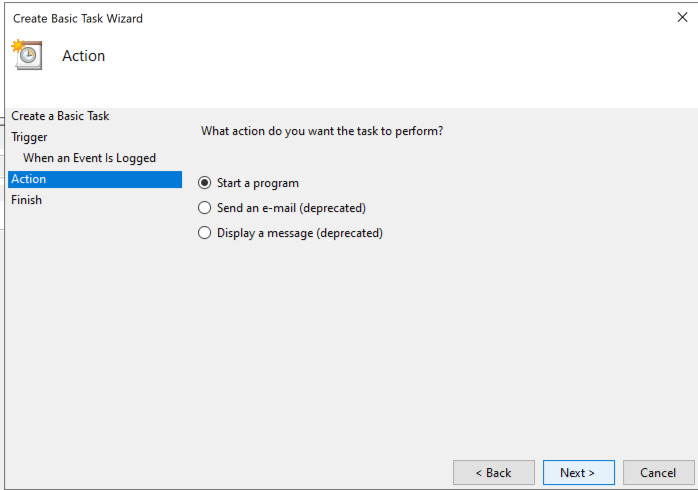
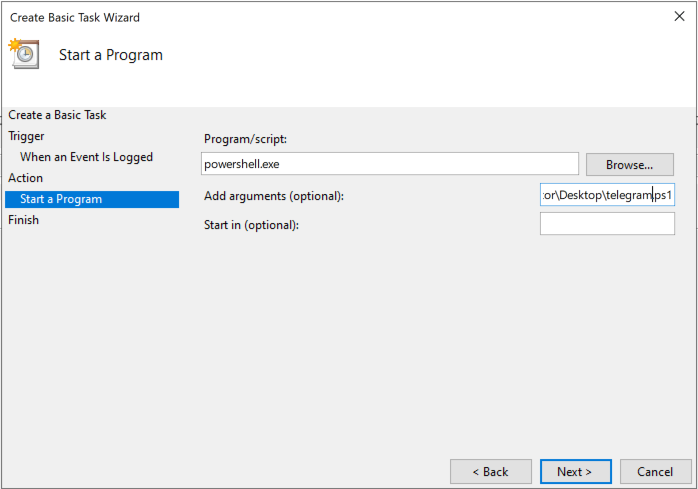
For the argument, enter the full path to the PowerShell .ps1 file you saved earlier.

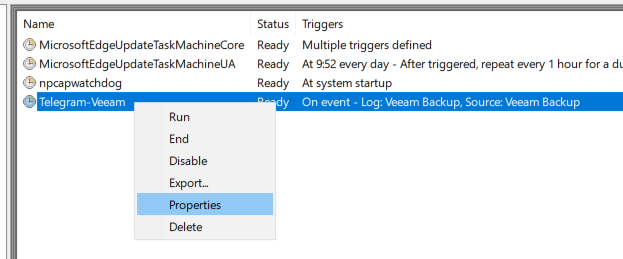
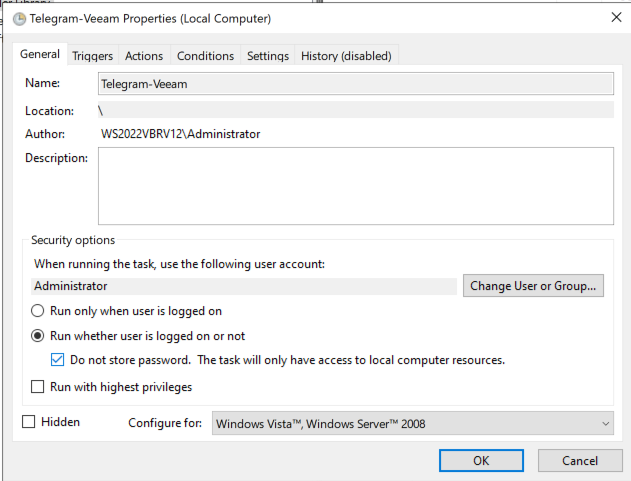
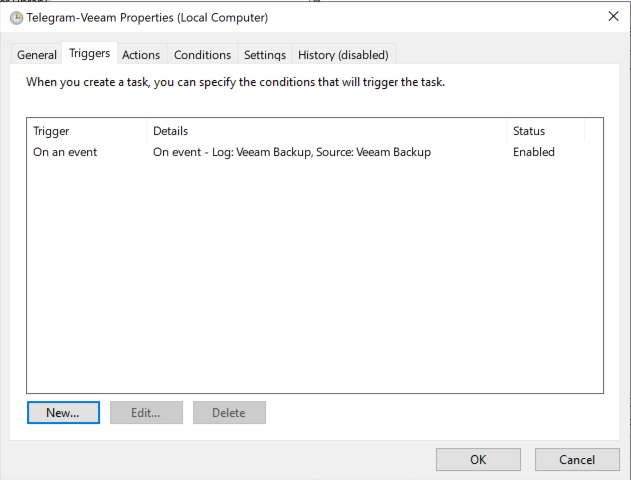
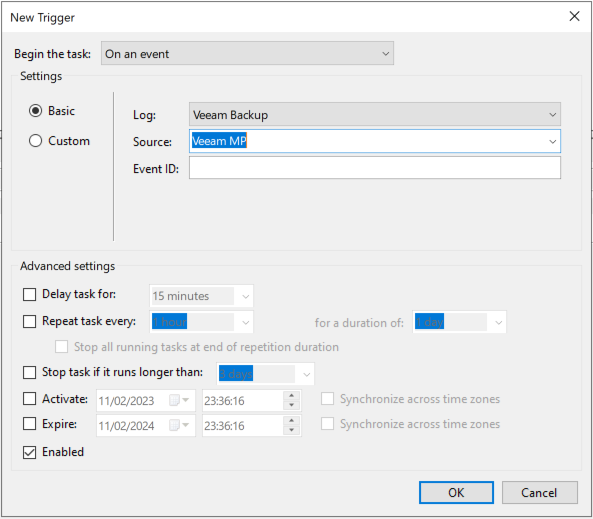
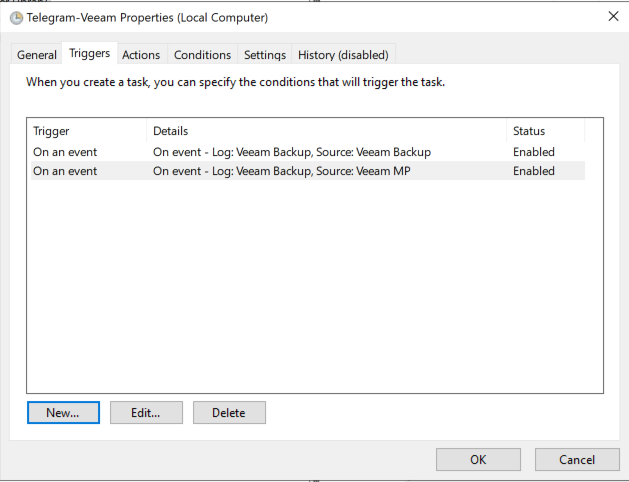
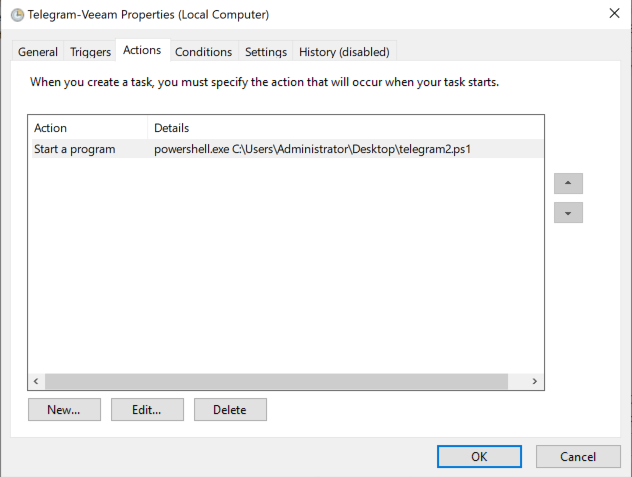

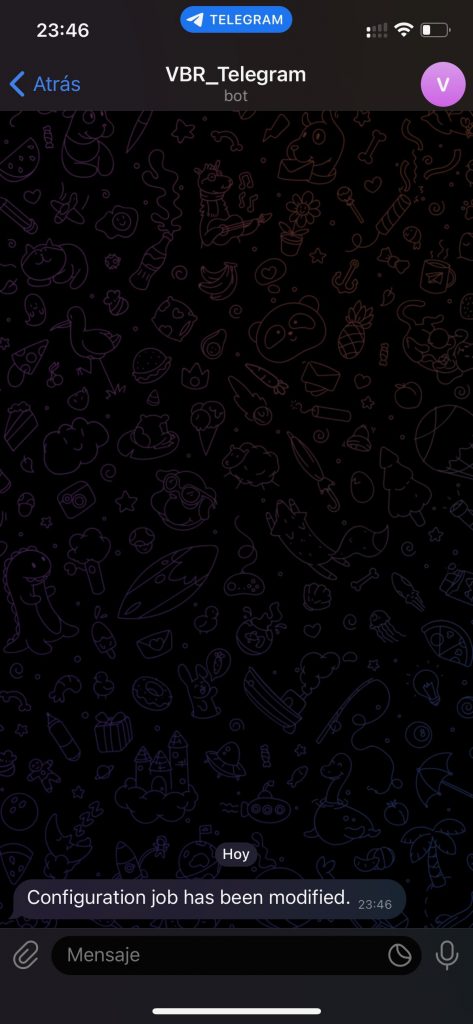
Everything is configured. Let’s run a quick test. Open Veeam B&R, if it isn’t already open, go to Configuration Backup, and increase the configuration backup retention by one day. You should receive a notification in Telegram:
Configuration job has been modified.
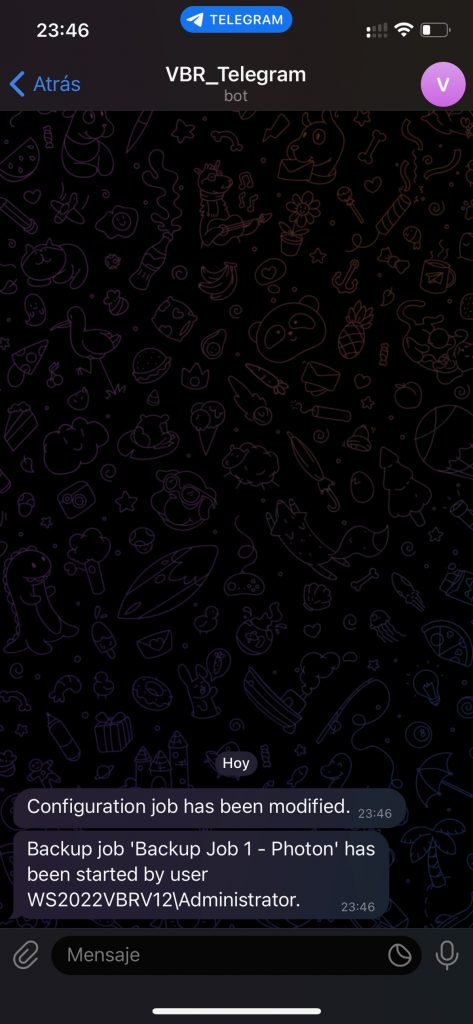
If you start a backup job, you’ll receive a notification like this:
From here, fine-tune the events you want to receive from Veeam B&R through Telegram in Task Scheduler.
I hope this is useful.
I’m no programmer, so if you improve it (which I’m sure you will), get in touch so we can update the post and make the Telegram notifications even better!
Regards.