One great feature in Veeam Backup & Replication is the ability to create replicas: copies of virtual machines at a particular point in time, ready to be started when needed.
Replication is useful for security, disaster recovery, and testing our machines.
In this short post, we’ll focus on creating a replication job.
Let’s get started:
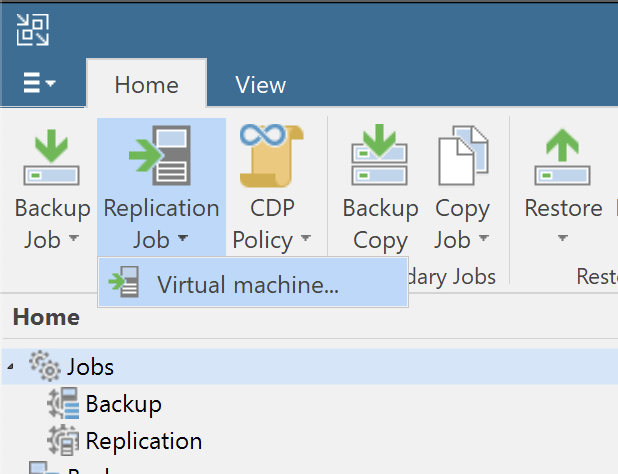
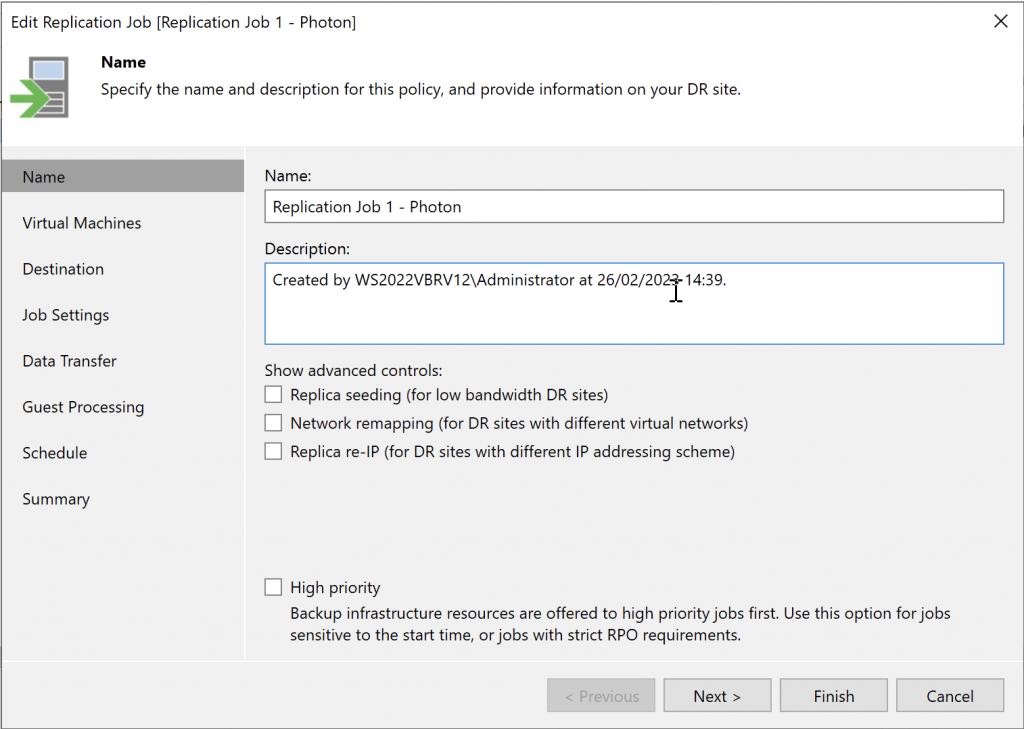
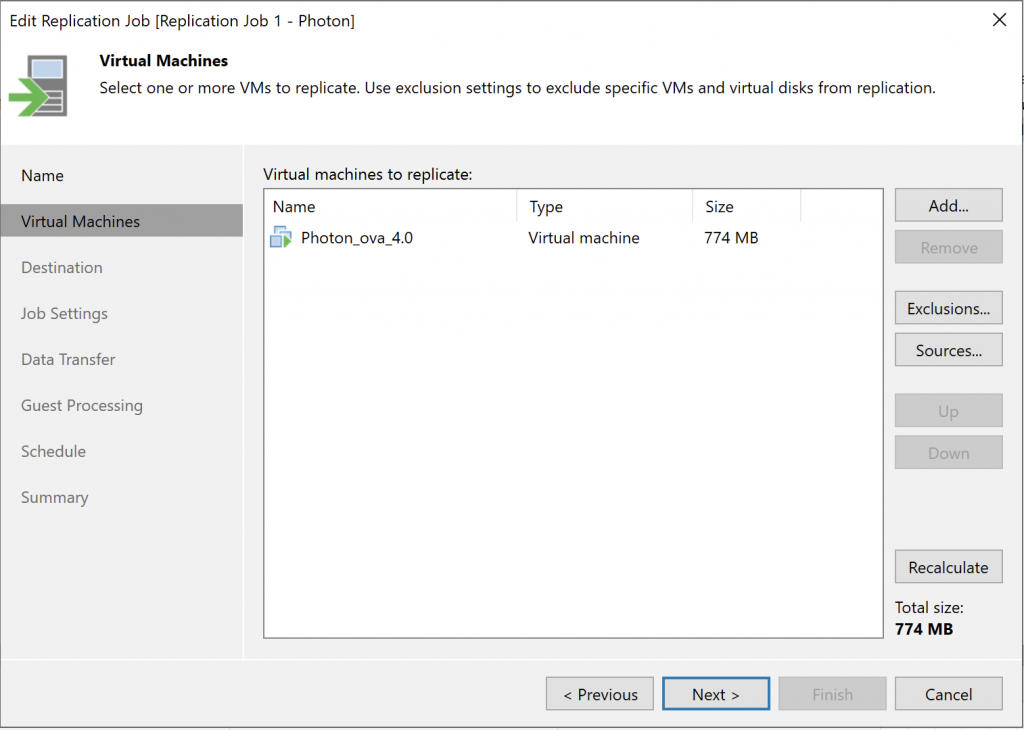
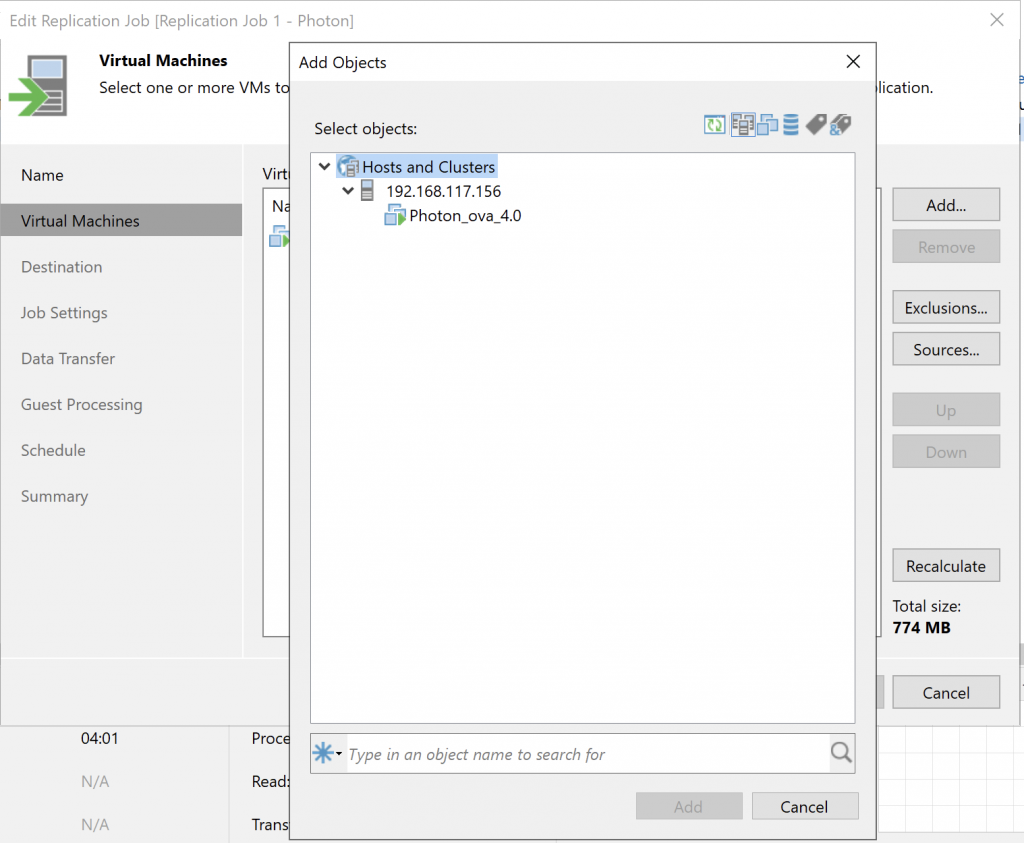
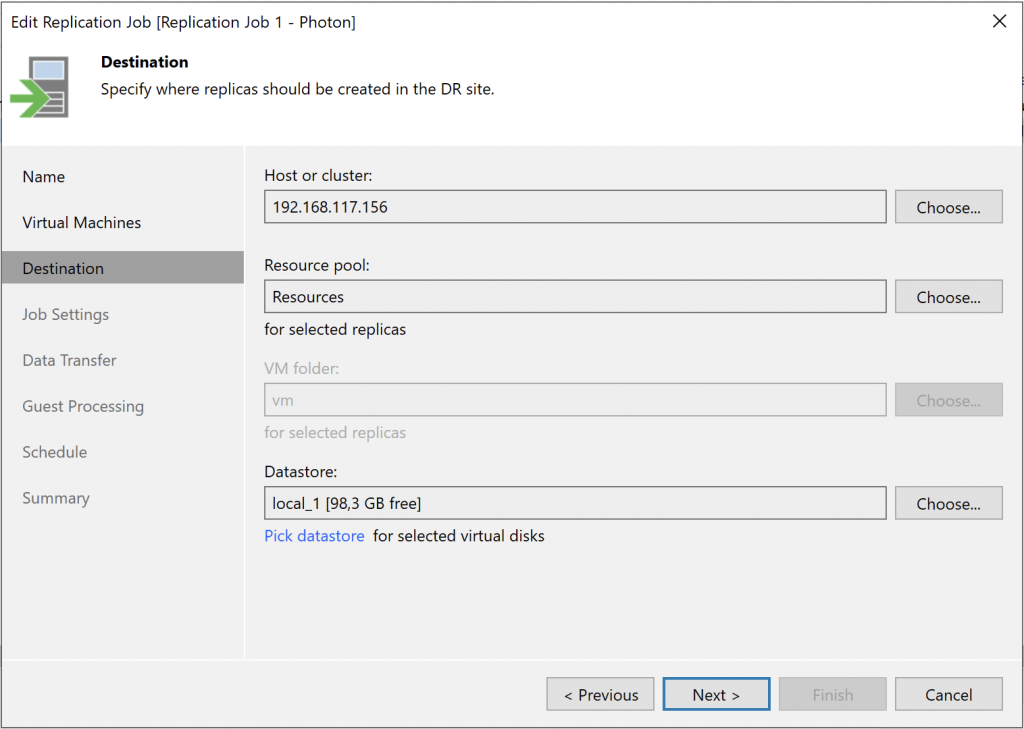
In the VBR v12 console, select the replication option.Enter the initial job details.Select the machine or machines to replicate. We won’t go into detail here, but you can see the exclusions and different sources available.In our case, we’ll select our test VM.Where do we want to host the replica? Which datastore should store it?
As you can see, because this is a copy of a VM, it needs to be associated with all of these resources so it can start.
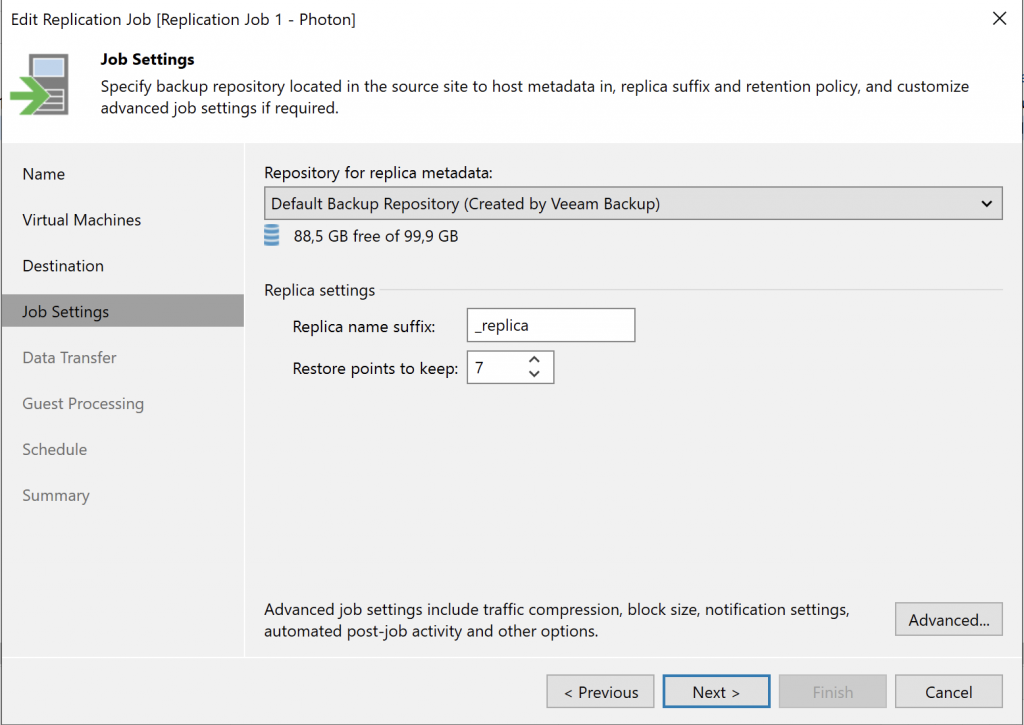
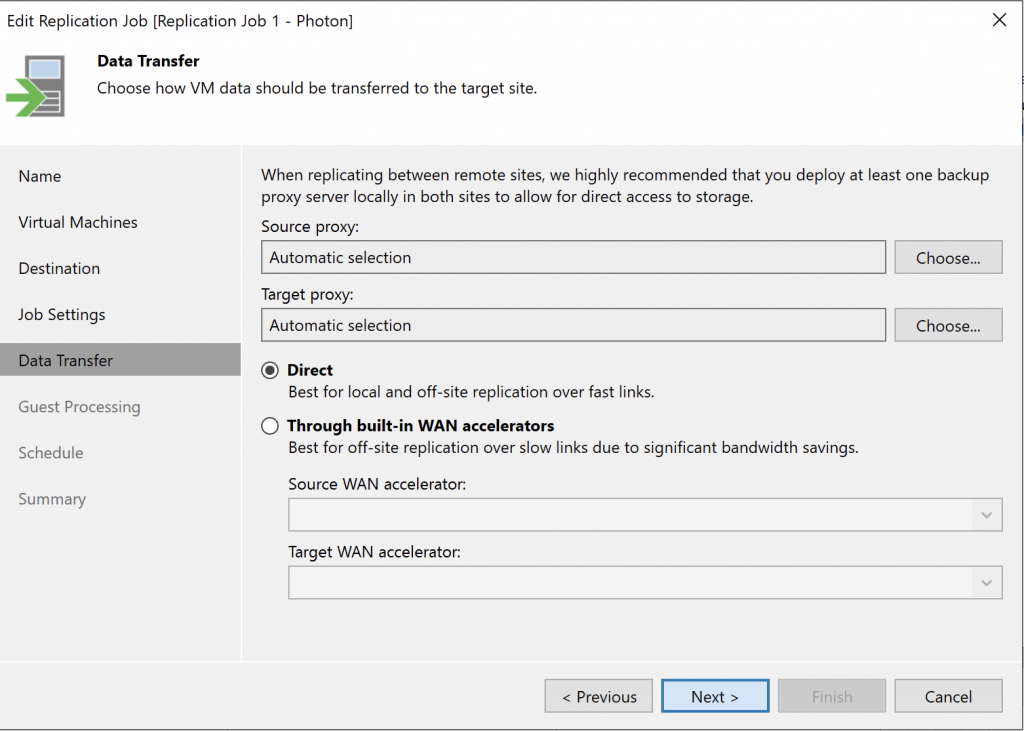
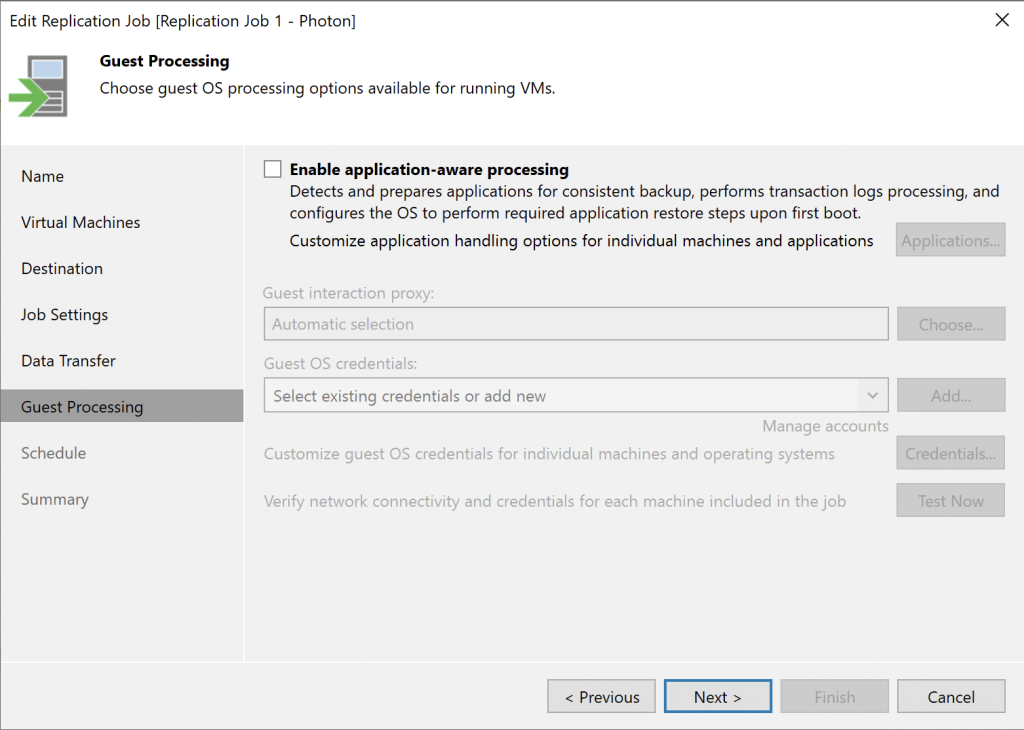
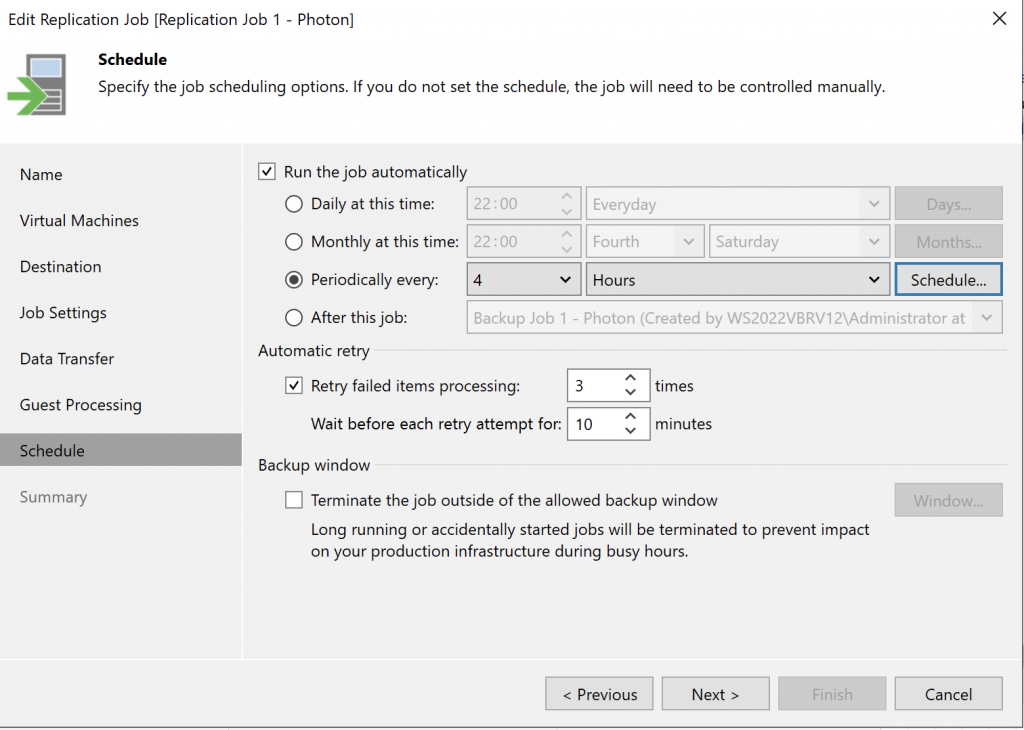
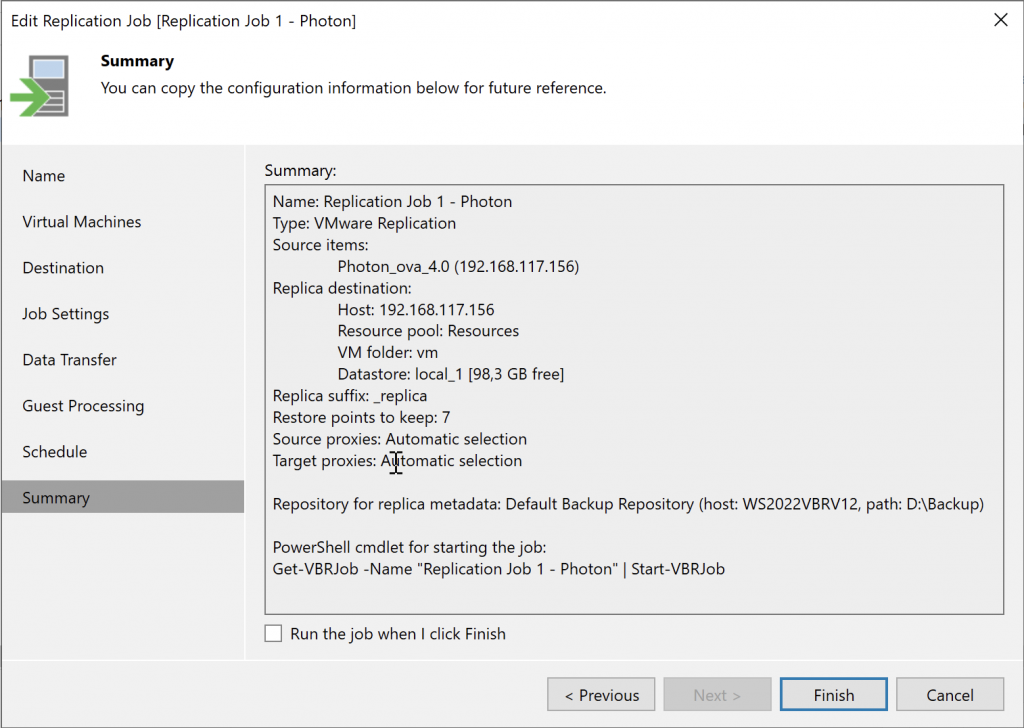
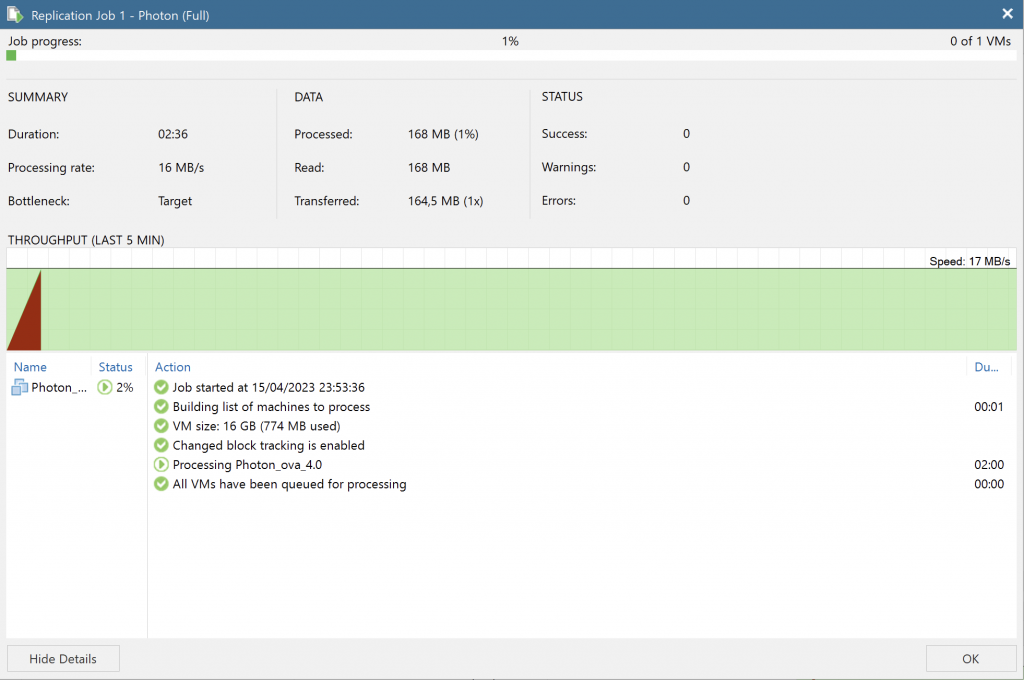
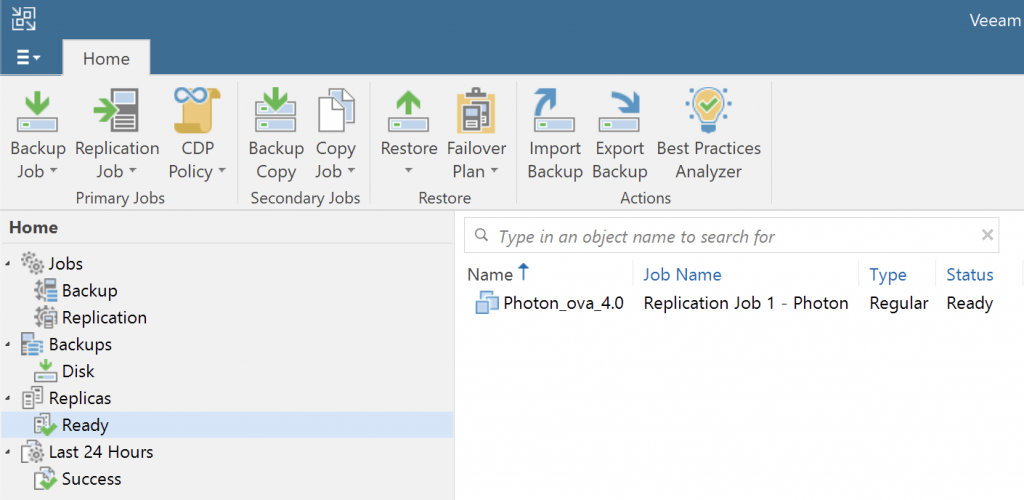
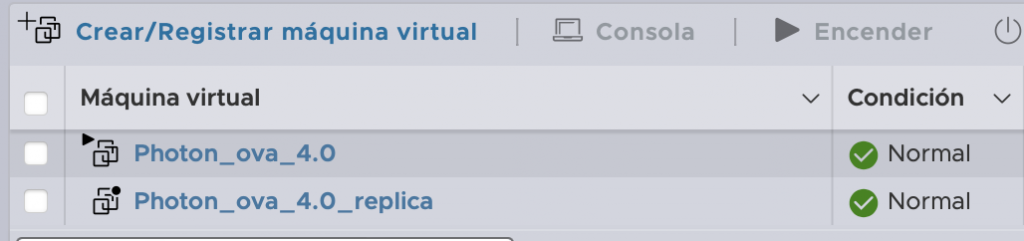
Where should we store the replica metadata? In our case, we’ll leave the default.If we were replicating to a remote site, we’d configure it here. In our case, it’s local.Application-aware processing tells the OS to prepare for the snapshot, helping avoid potential application errors, such as with SQL.How often should the replica run? For this example, I set it to run every four hours.Here’s the summary. Everything looks good.Our job has been created.Let’s run it and see what it does.Done! The replica is listed in the menu on the left.If we open the vSphere host, we can see it. It’s an identical VM, but powered off!
One final note: although replicas are very useful and incremental, they should never be confused with backups.
For me, a replica is protection against disasters and a useful ally when migrating or moving VMs within a virtualized environment.