
(Veeam Hardened Repository)
Hi! Today I finally got around to deploying and testing Veeam’s excellent VHR project, the VHR “Veeam Hardened Repository.”
It is a packaged Ubuntu Server deployment that has been hardened using DISA STIG security guidelines.
You can install the OS yourself and then run the Hardened script, but I was more interested in trying this “packaged” deployment.
I’ll share screenshots and a few comments; the process is very simple.
For this test, I deployed it as a virtual machine. However, VHR is designed to run on a physical server, not a VM.
You can find all the information and downloads here!
Let’s get started:
As a prerequisite, the installer looks for the smallest disk for the OS and the largest disk for the repository. I used a 20 GB disk and a 100 GB disk, and both were detected automatically.
For a physical server deployment, a RAID controller is recommended: a small RAID 1 for the OS and RAID 5 or 6 for the repository.
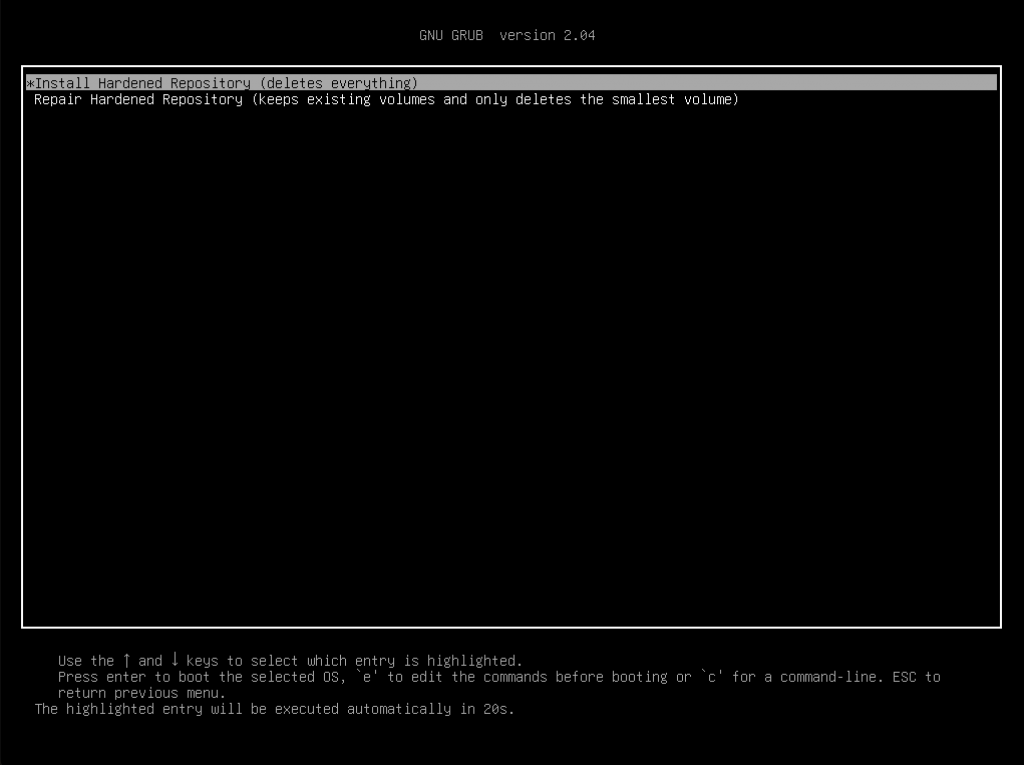

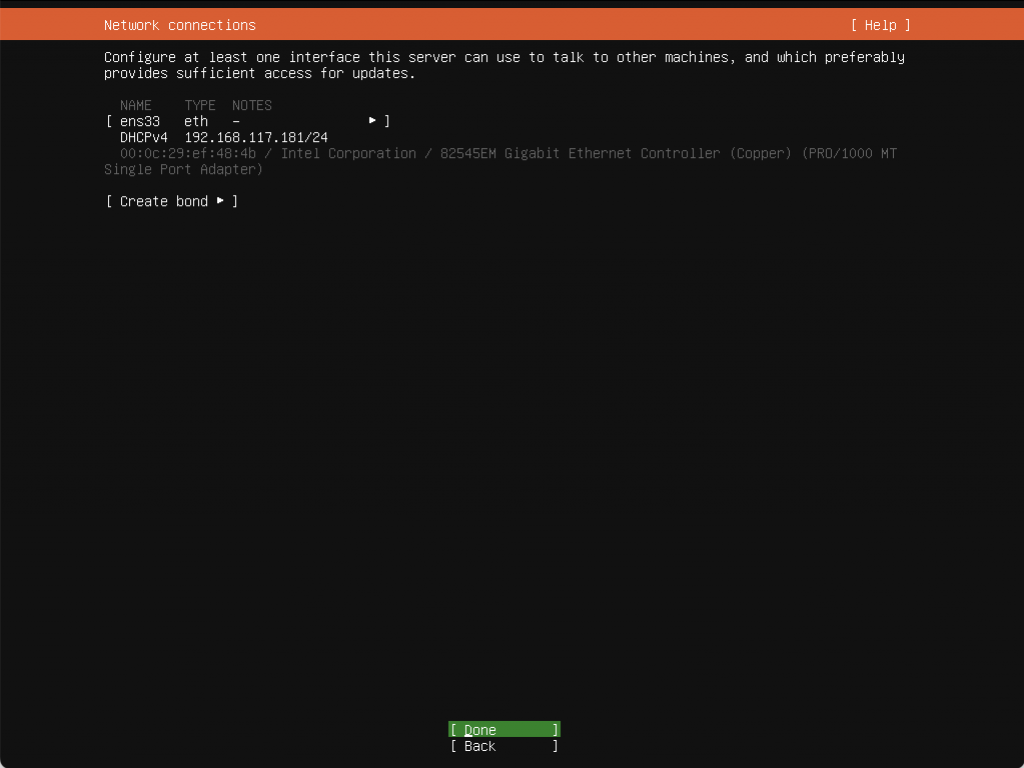
In my lab, I used a single DHCP-configured network card.
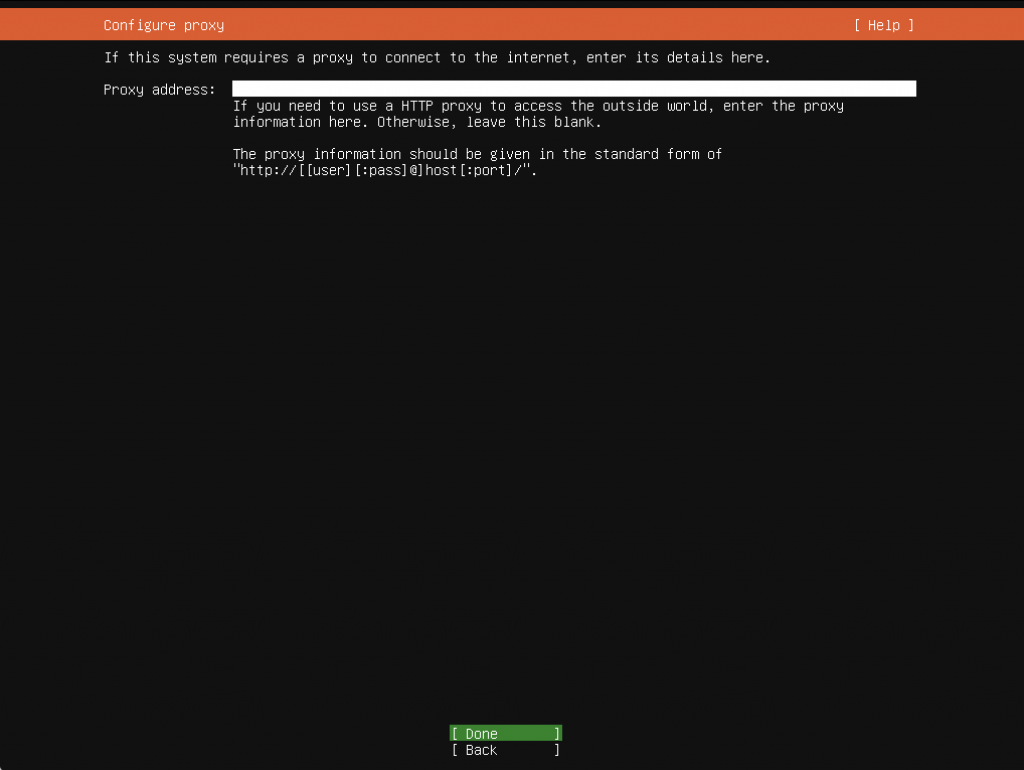
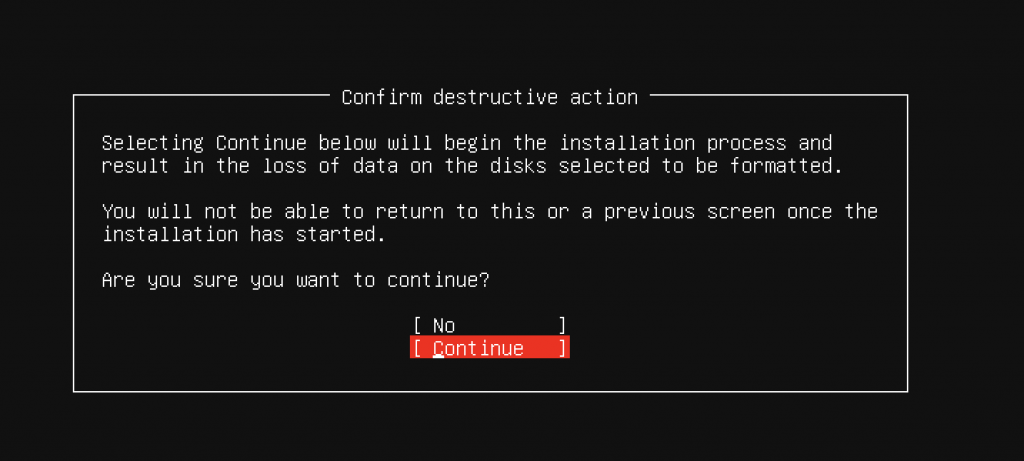
If you are reinstalling the OS because of a failure, do not do this or you will lose everything.
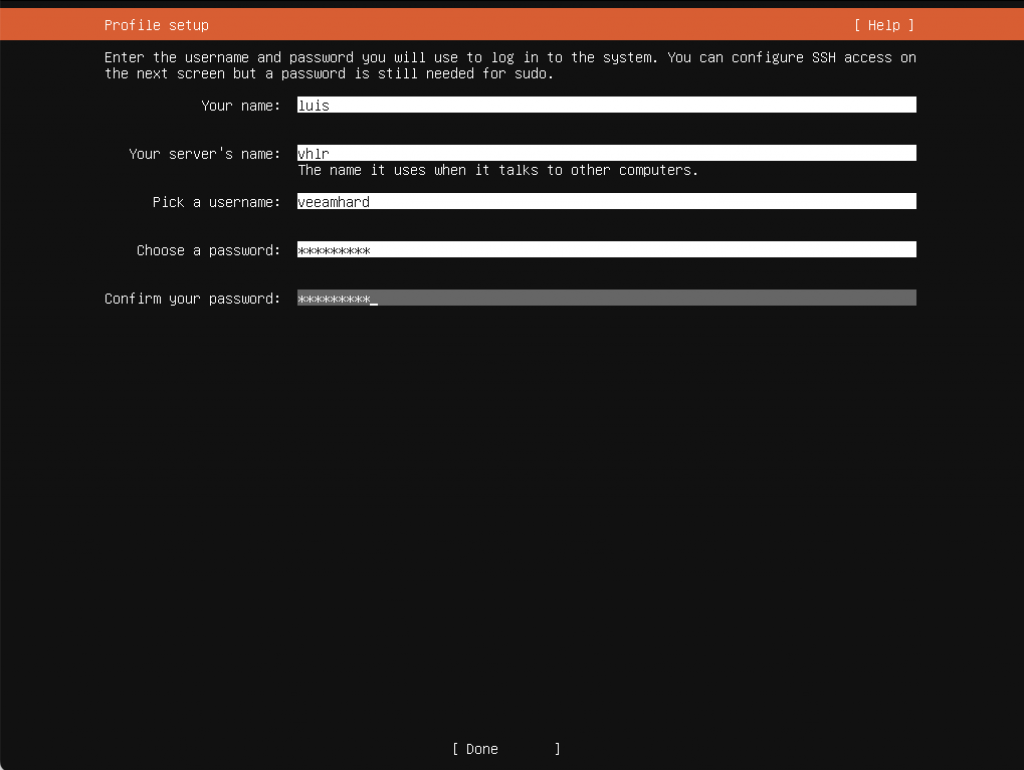
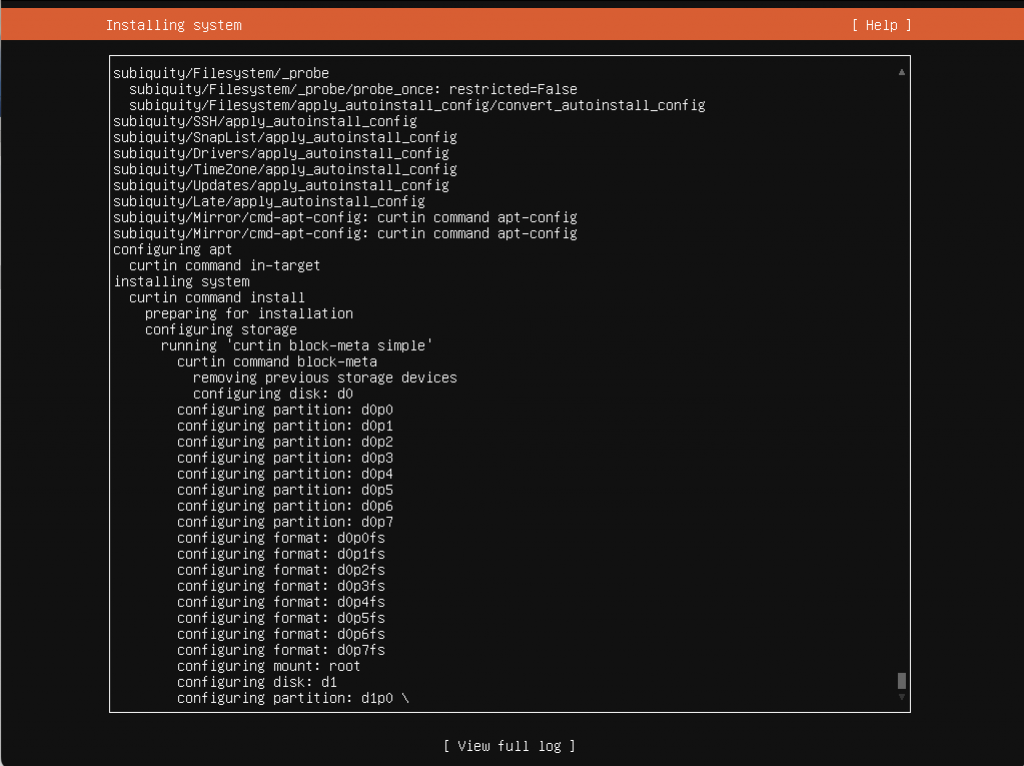
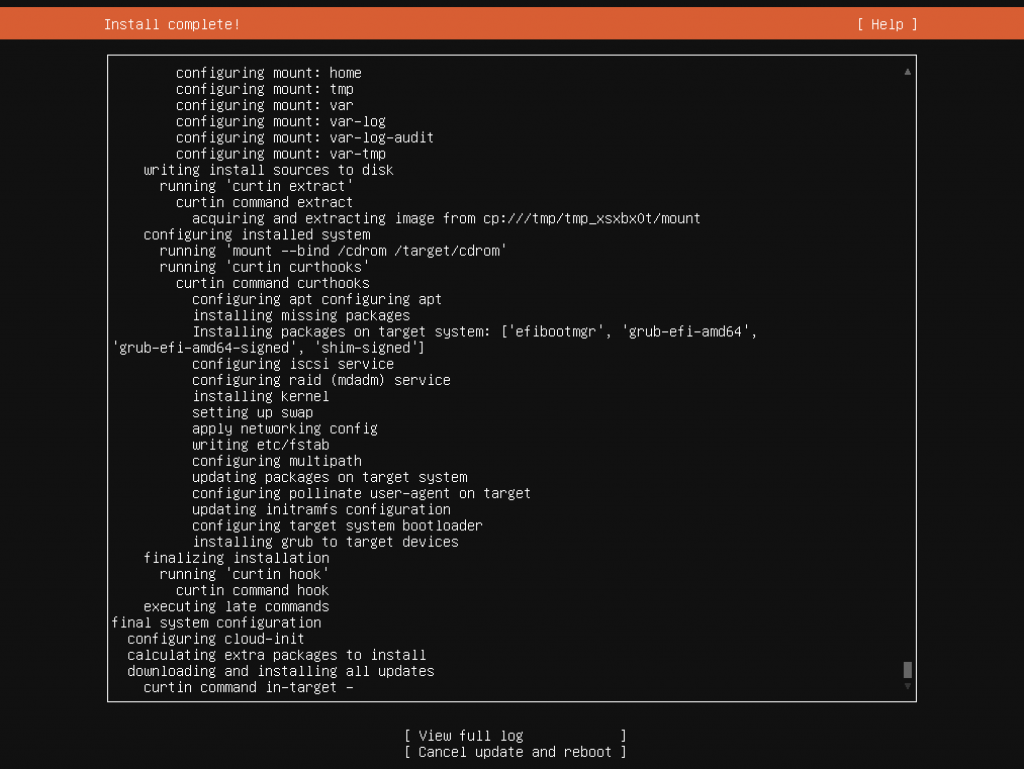
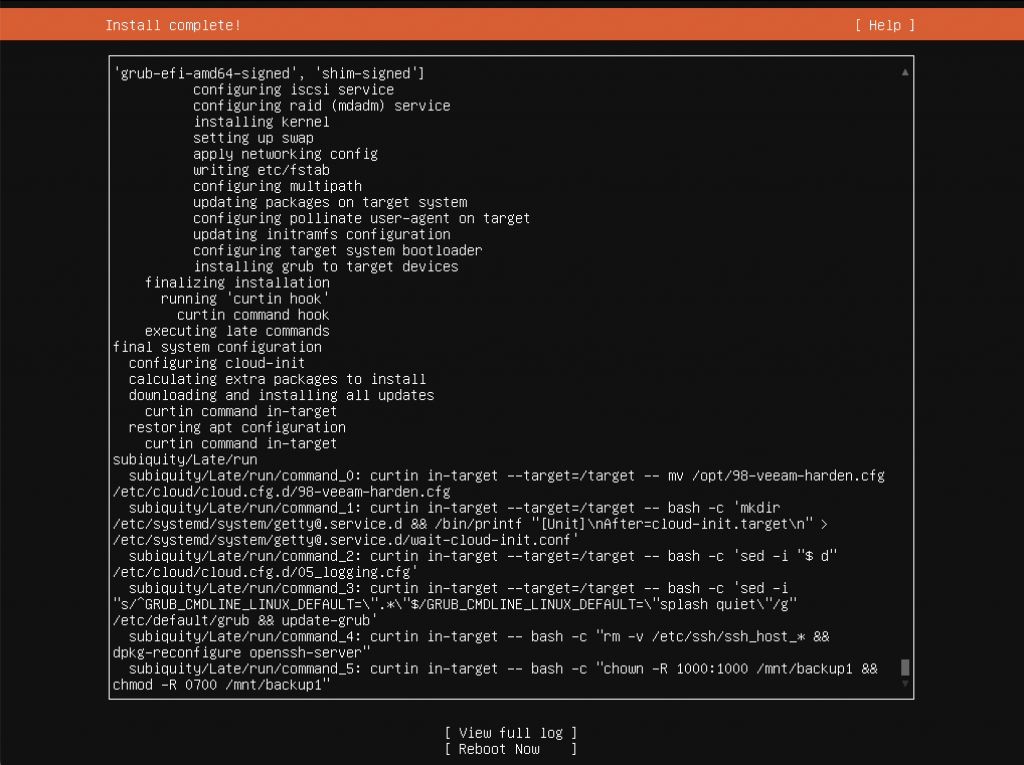
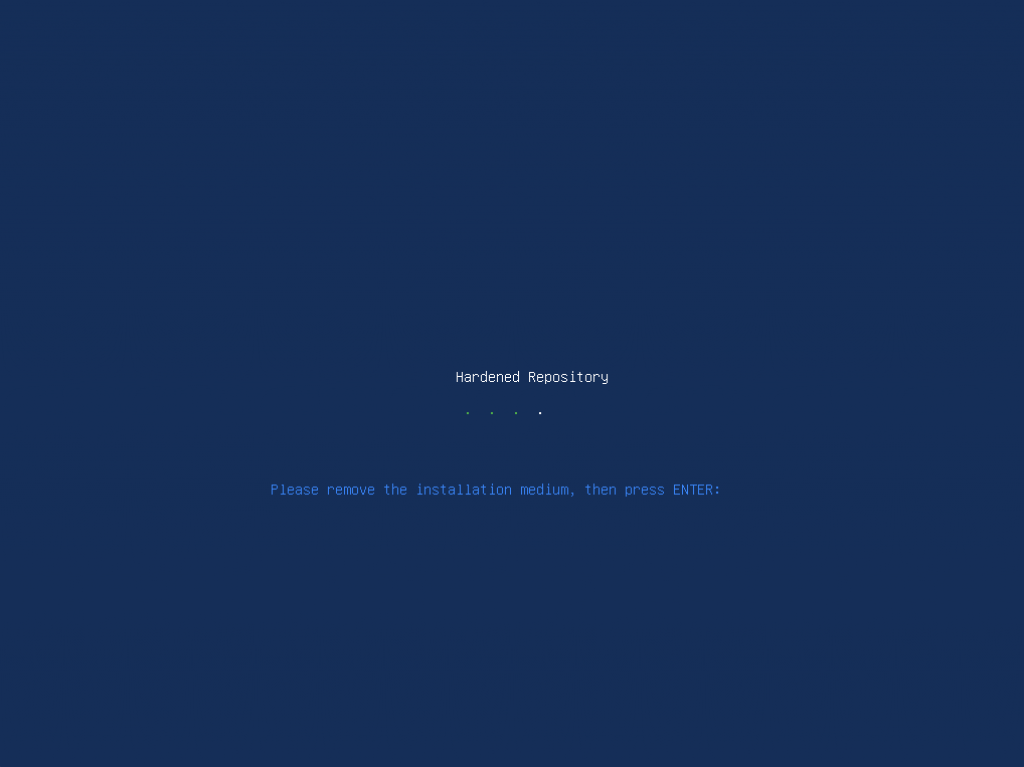
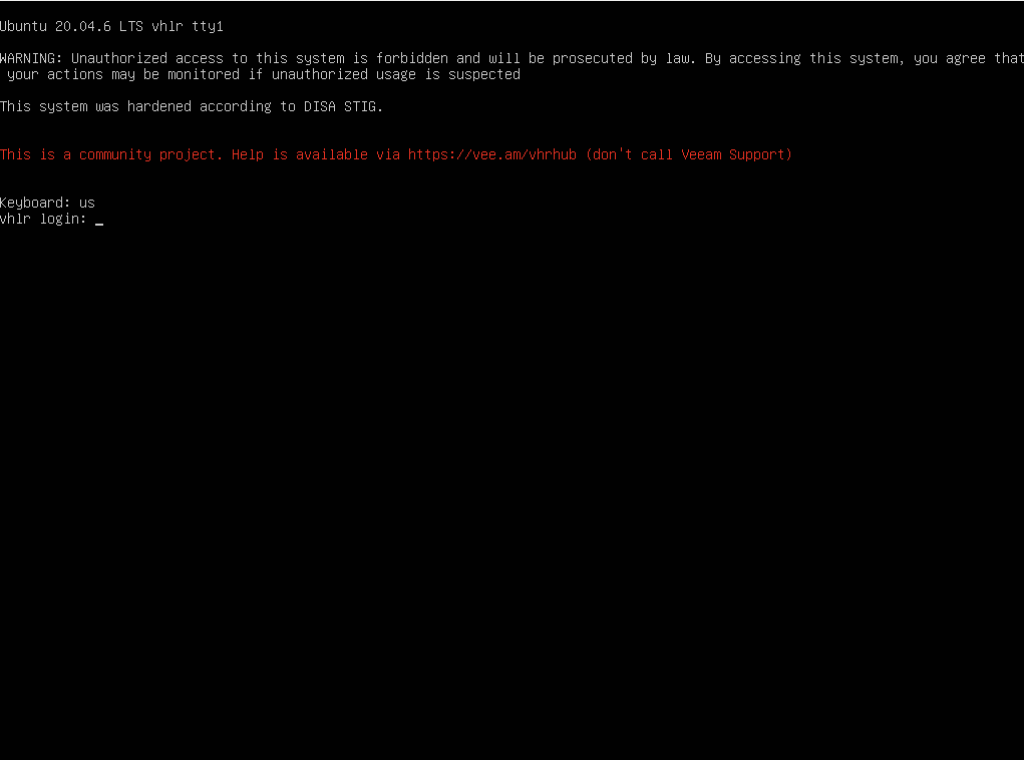
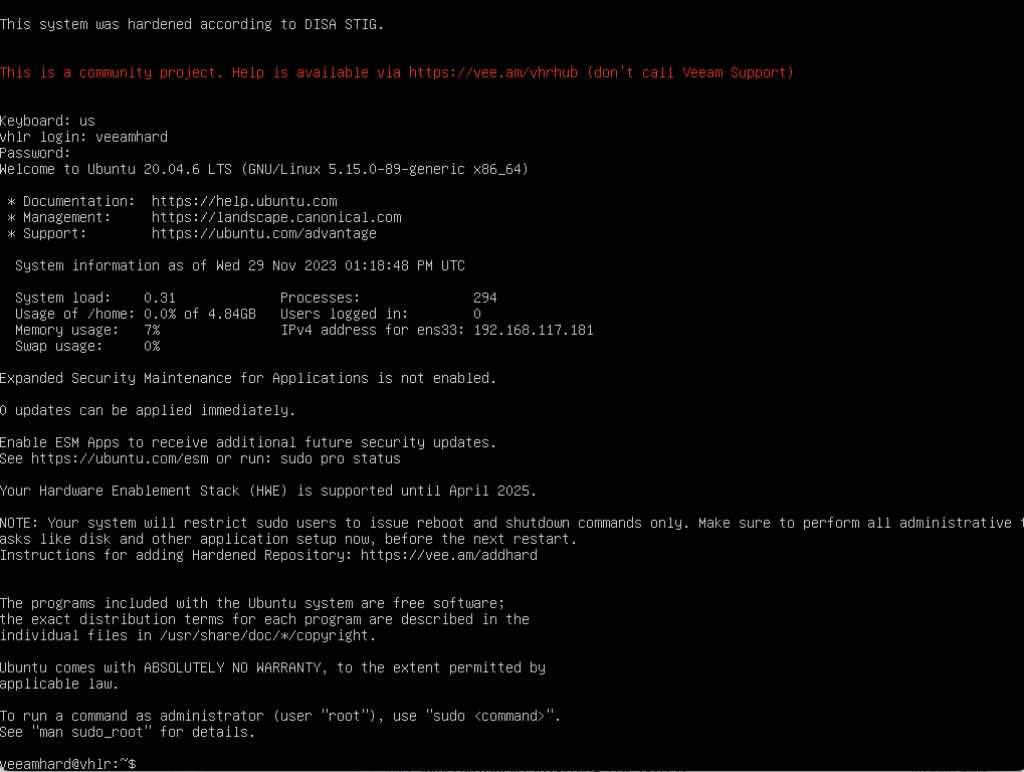
Make any adjustments before rebooting, and add the server to Veeam VBR first!
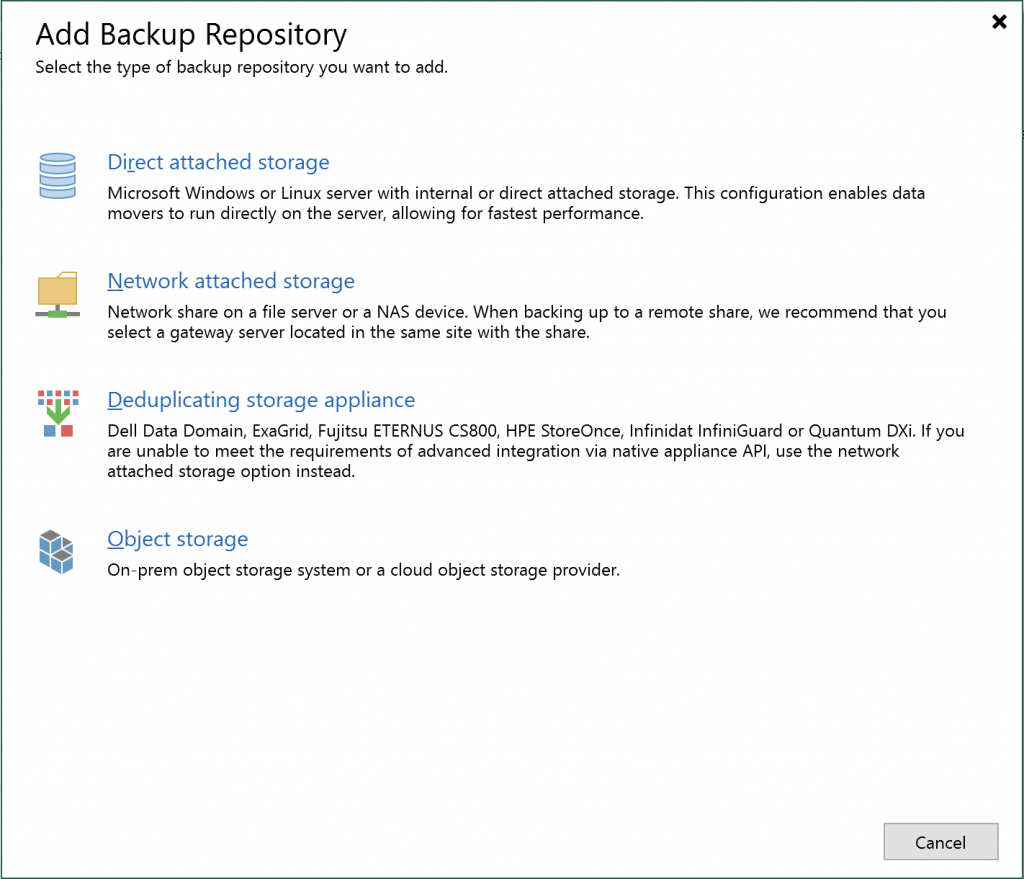
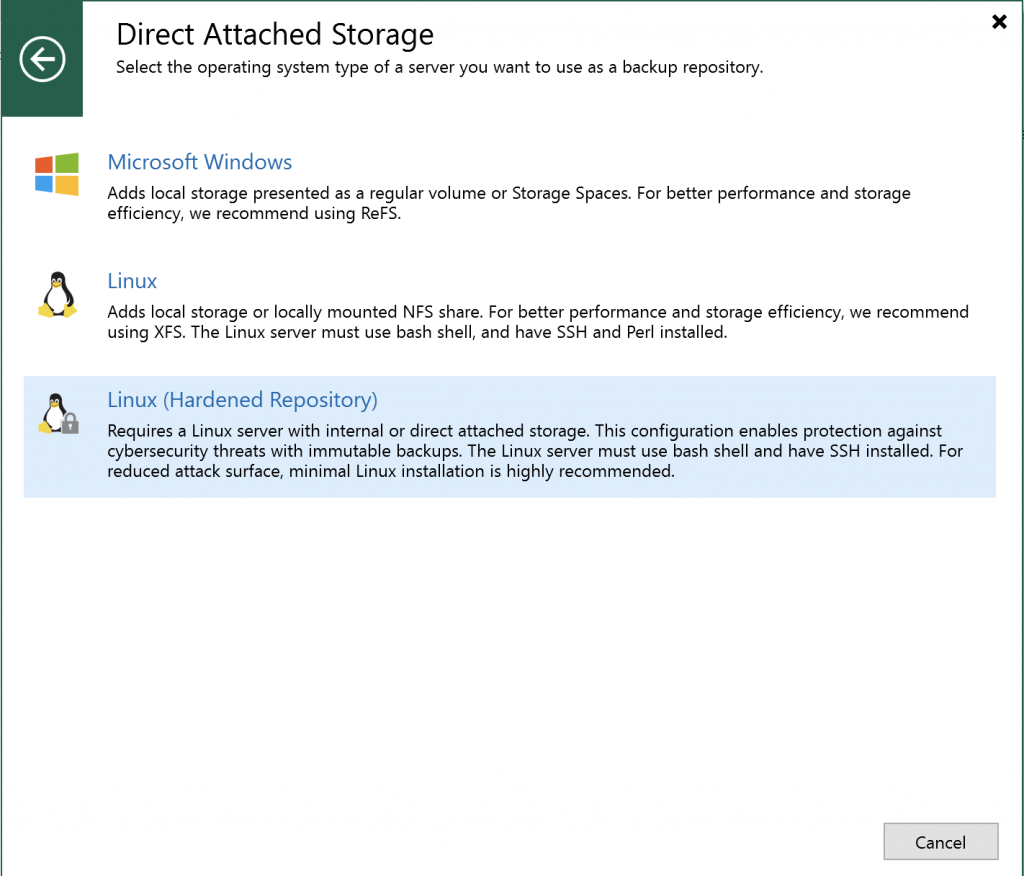
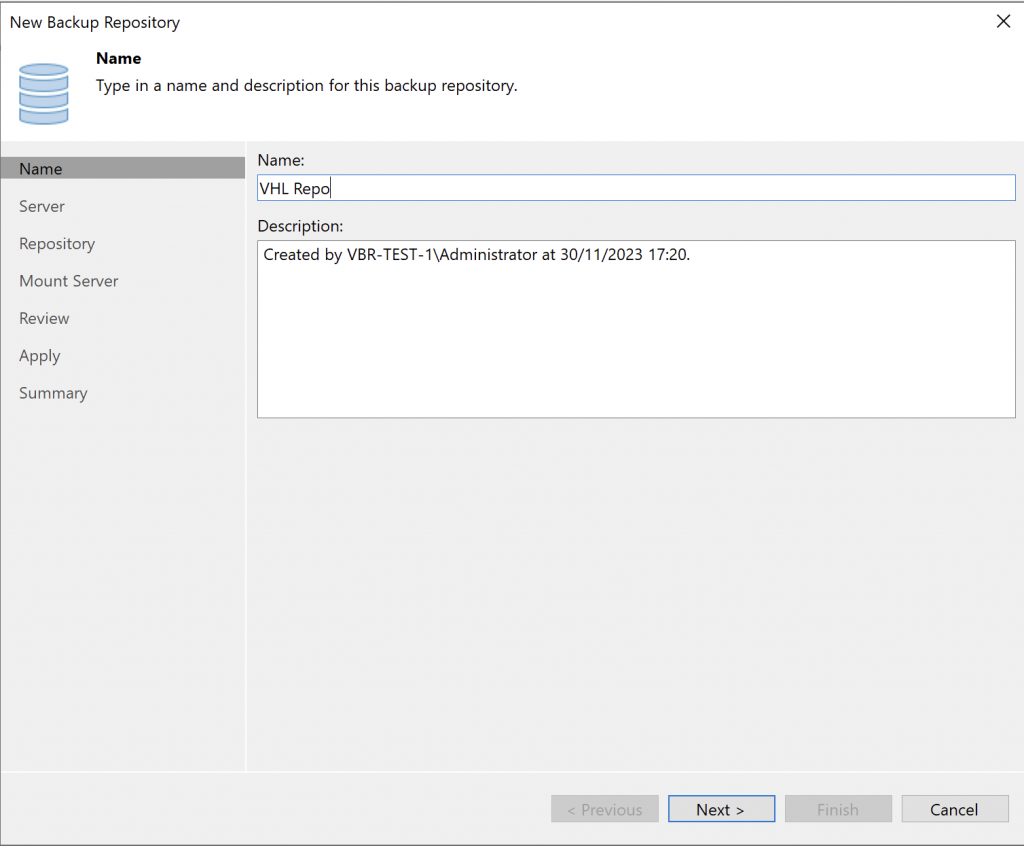
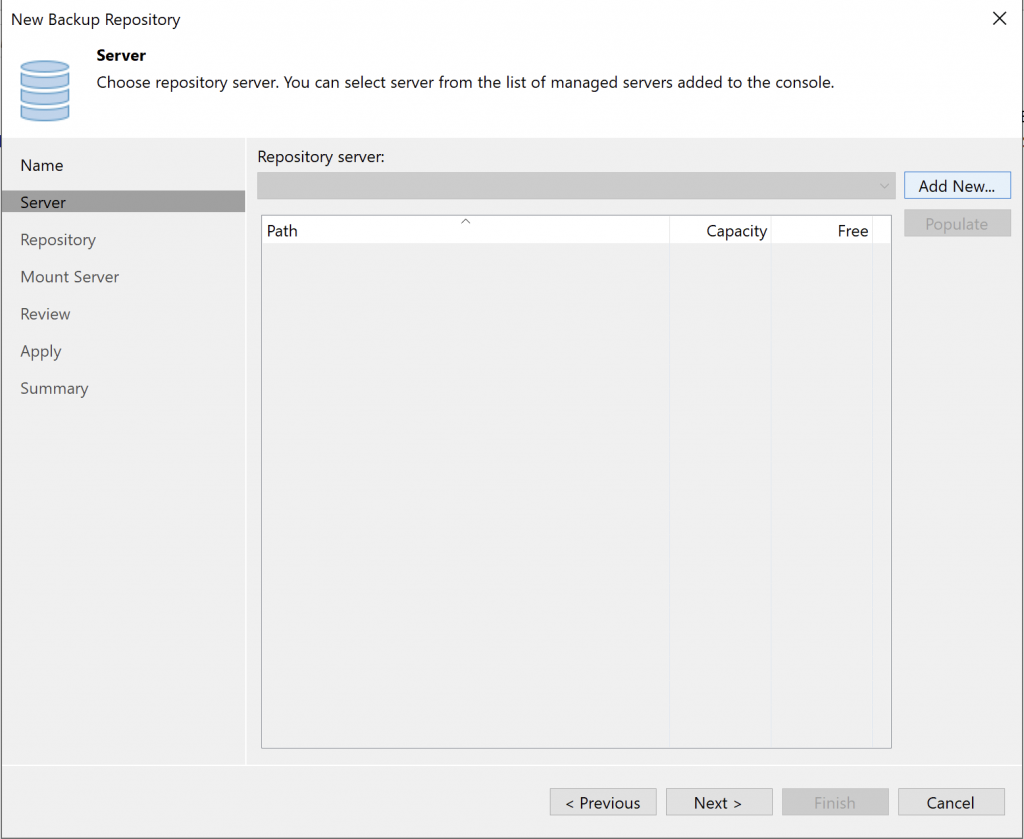
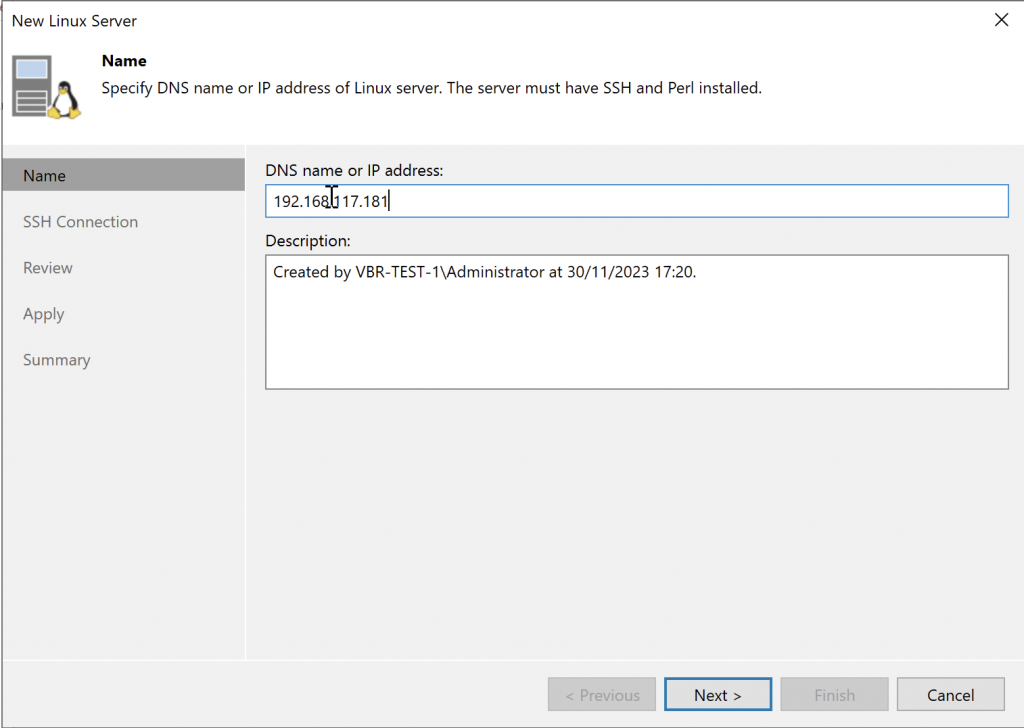
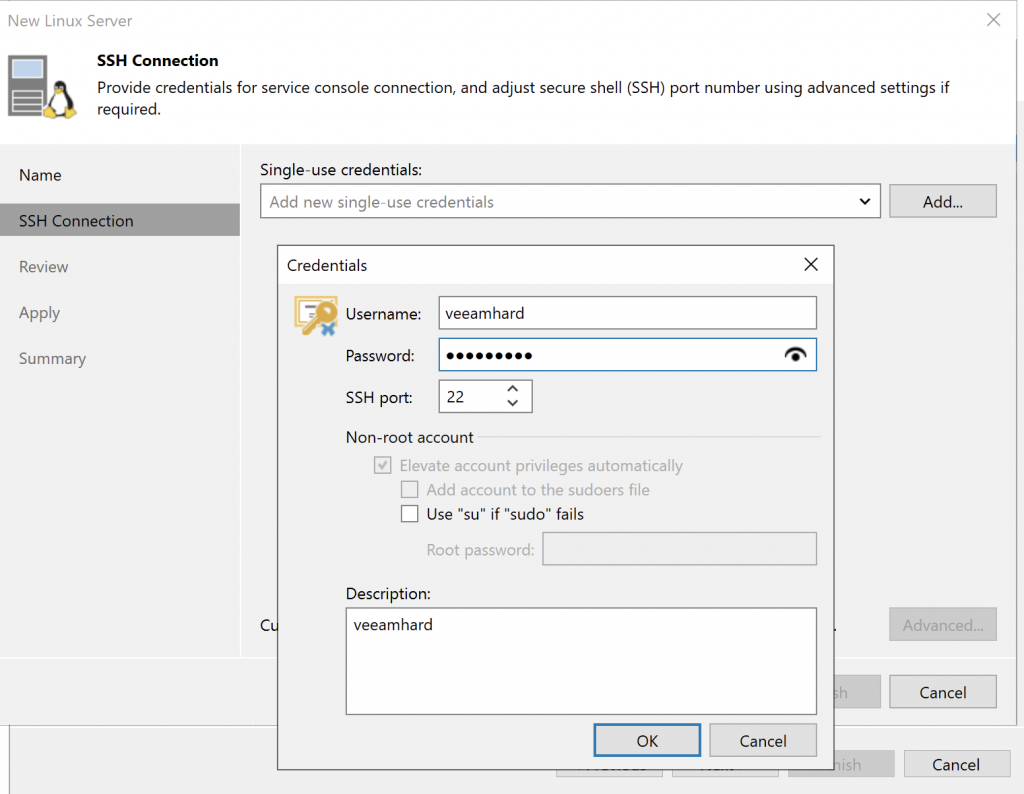
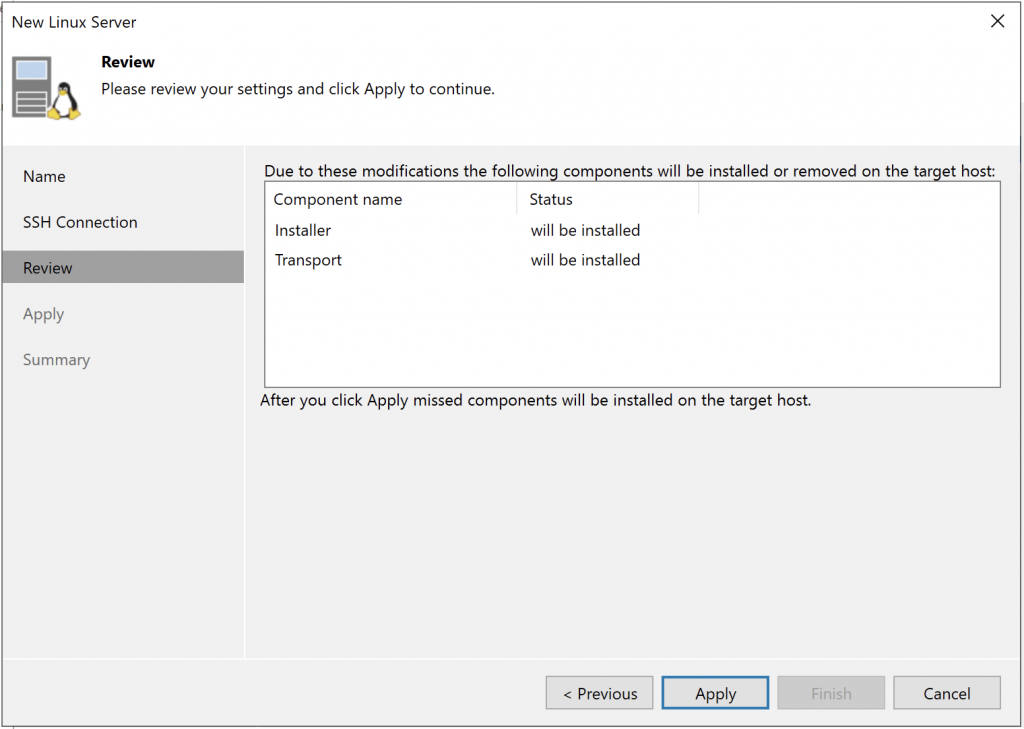
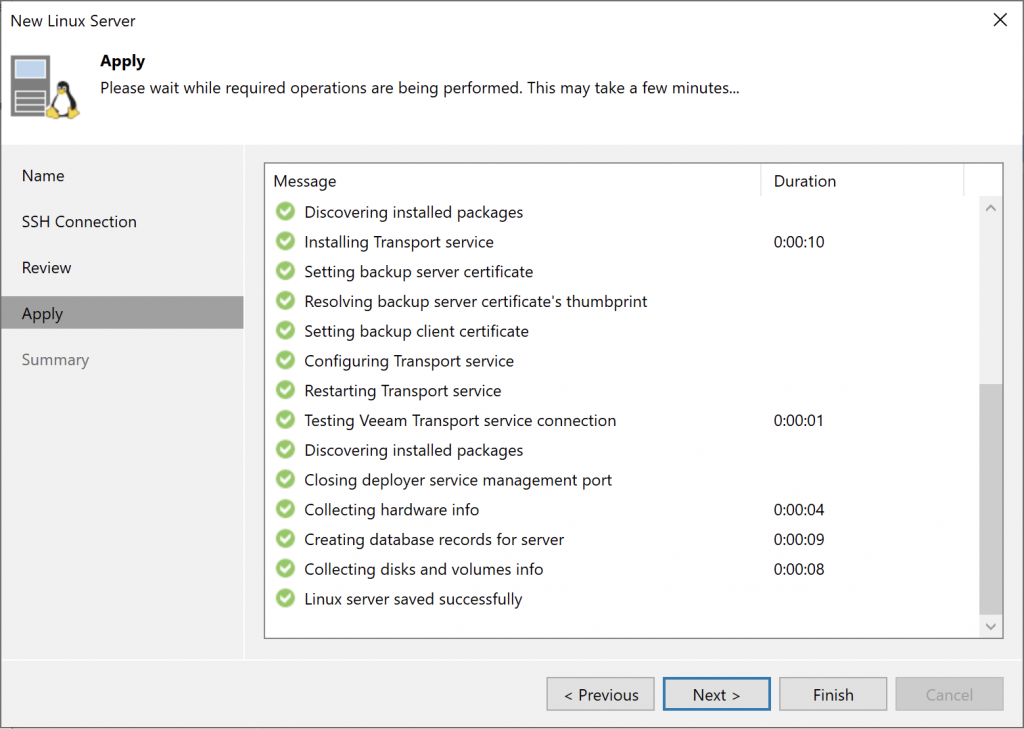
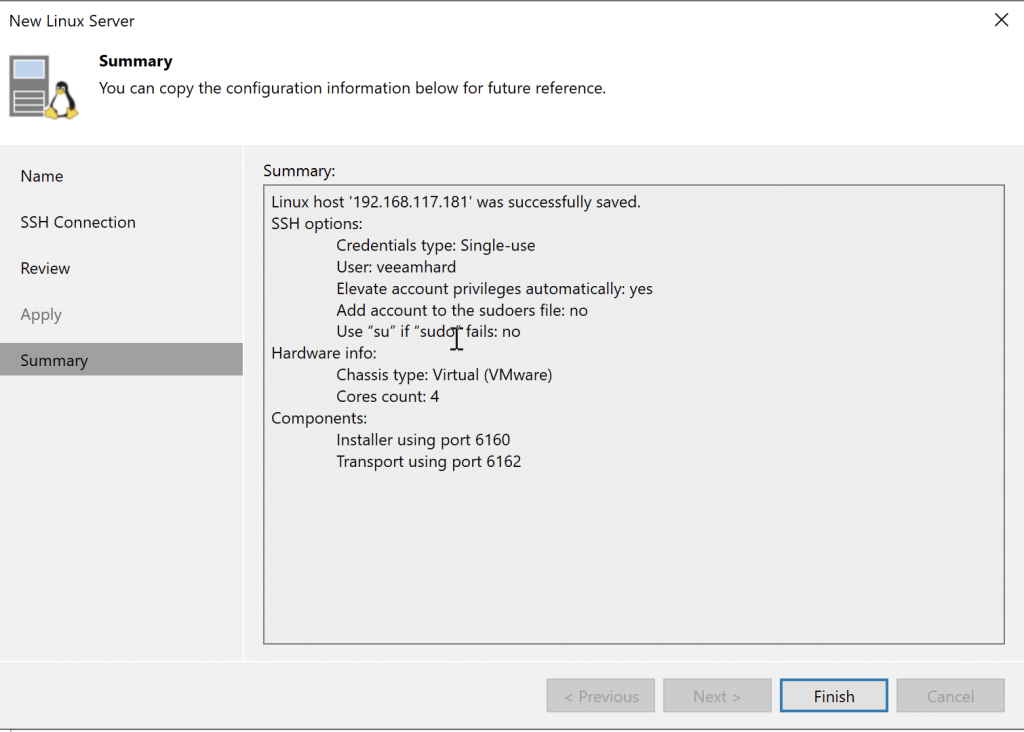
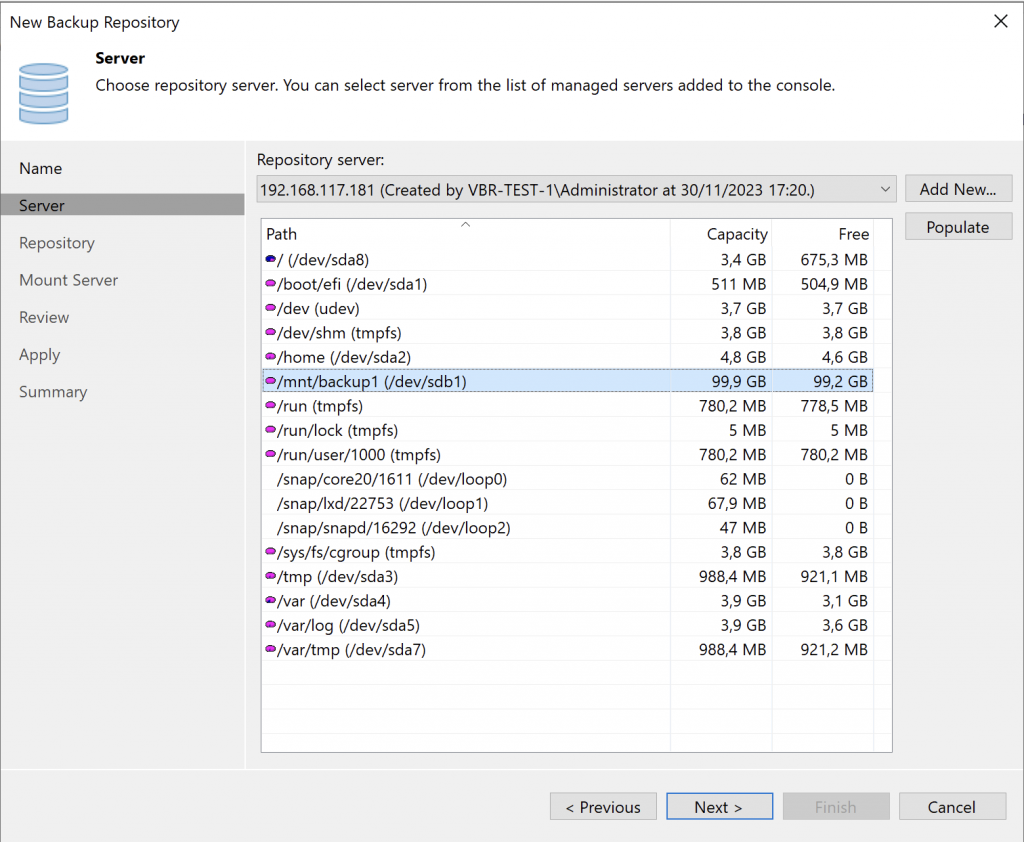
Select the drive where you want to store the backups: the repository drive!
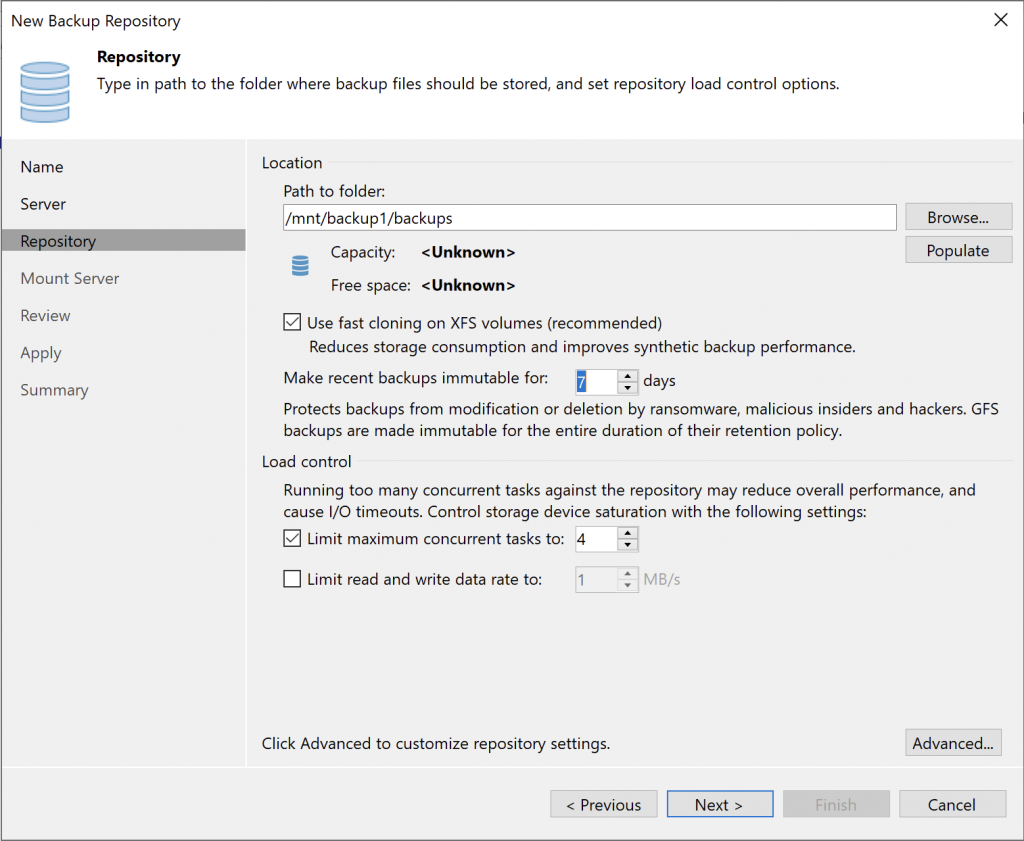
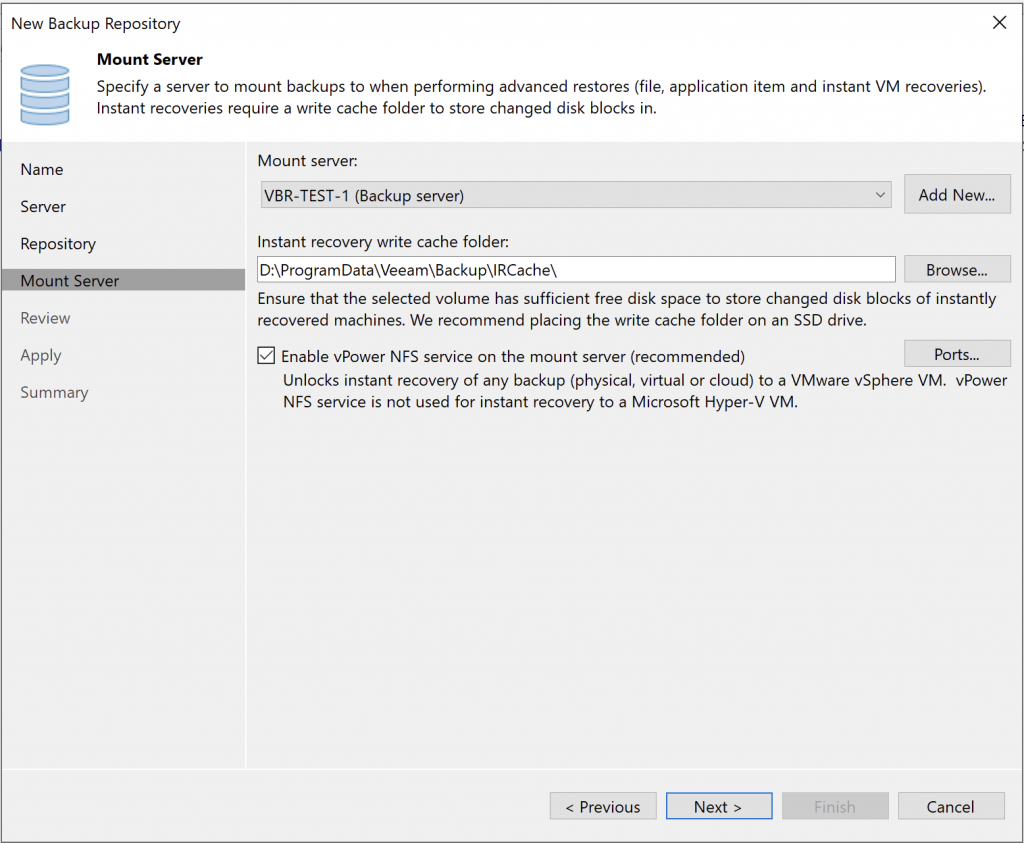
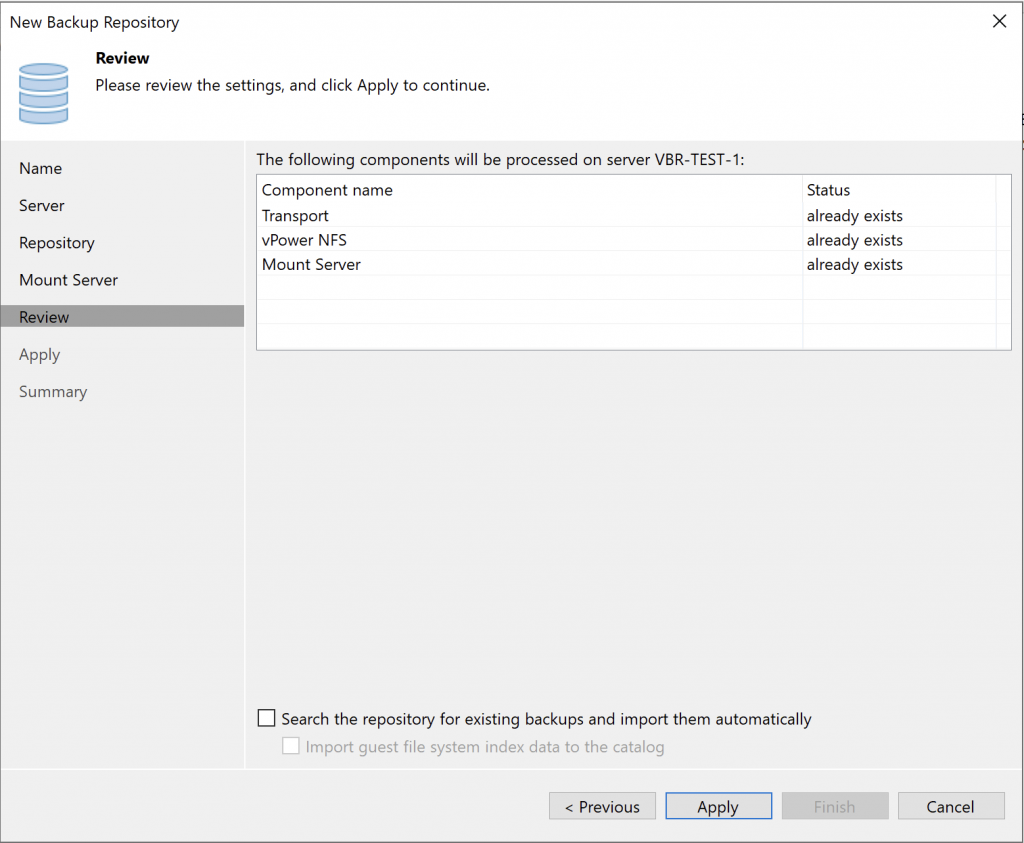

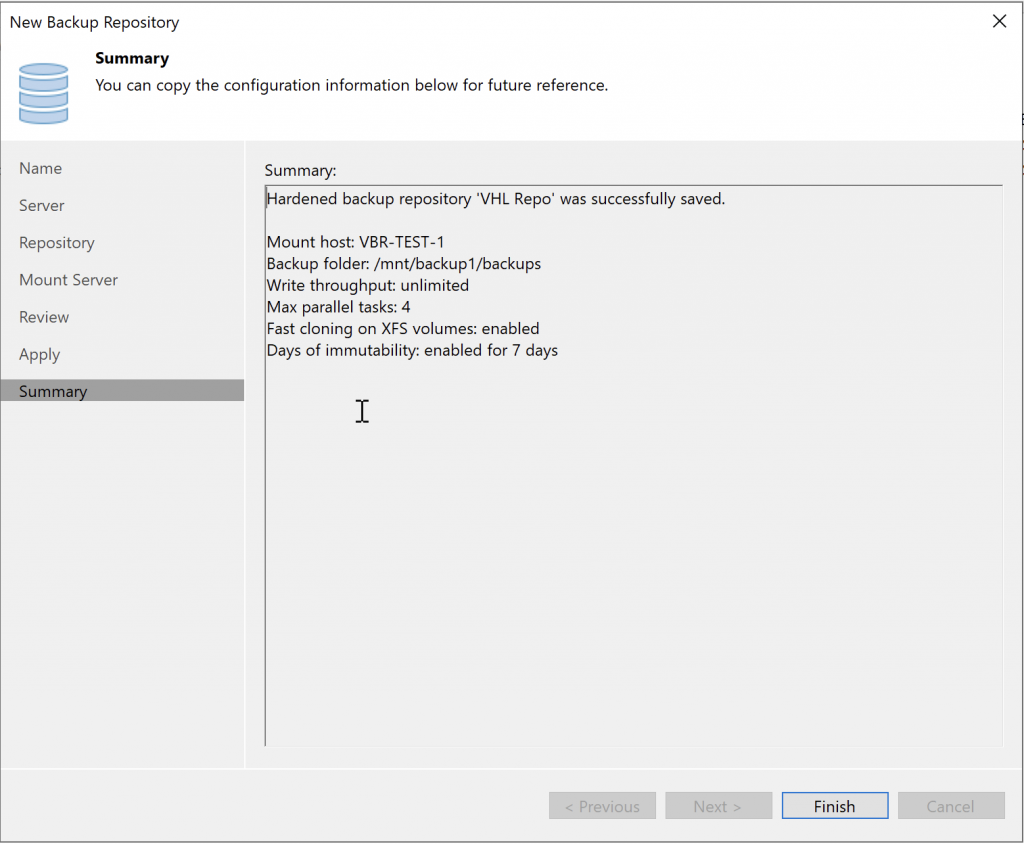

Now return to the VHR server we deployed to finish hardening it!
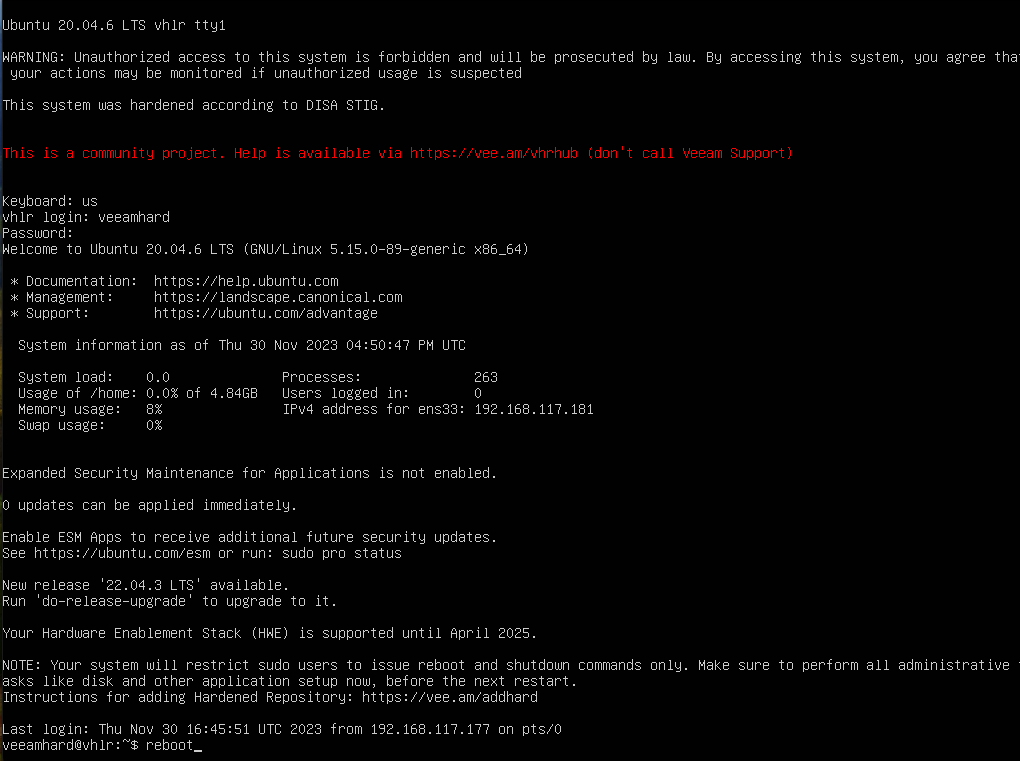
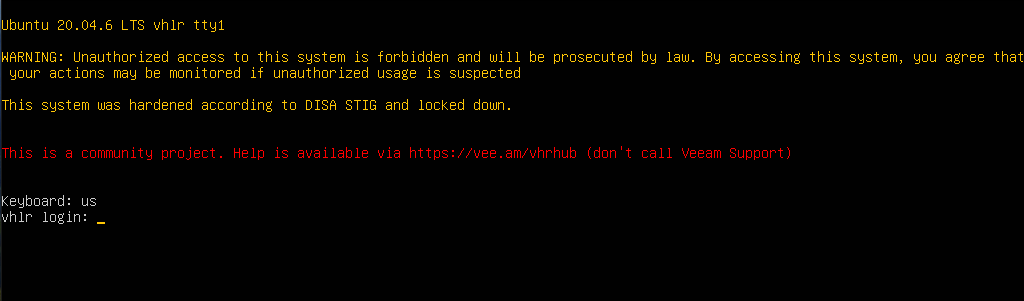
Everything is ready to use the repository on our secure server.
To troubleshoot, reboot and sign in to the server as root in standalone mode from the GRUB boot menu, since root is disabled and our user only has reboot and shutdown permissions.
I hope you found this useful and that it helps you deploy this great option.
I run it in my lab. As the documentation says, use it at your own discretion. It is unsupported, so you cannot open a support ticket for it!
To monitor the disks for failures, configure your server’s ILO, IPMI, DRAC, or equivalent, since the VHR OS does not send notifications.
Regards.