
Hi,
I’ll give you a high-level walkthrough of deploying the Apache Guacamole virtual appliance and performing an initial setup of a user and RDP/SSH connections.
First, download the virtual appliance from Bitnami here It is an OVA for vSphere.
Once downloaded, deploy it—in my case, on an ESXi host.
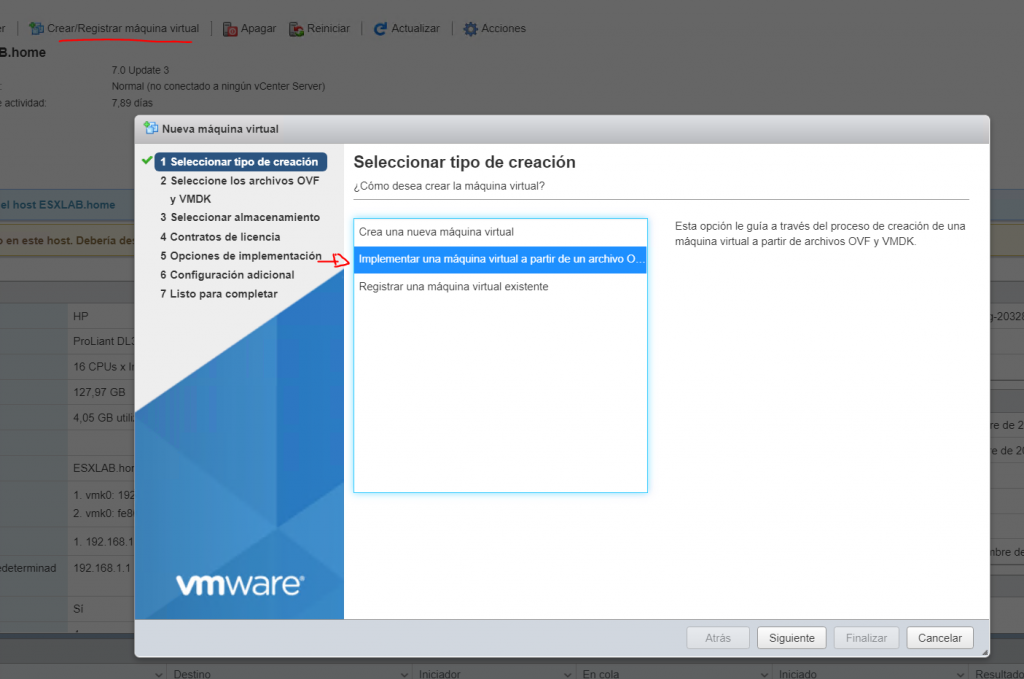
Create VM > Deploy from OVF or OVA file > Next
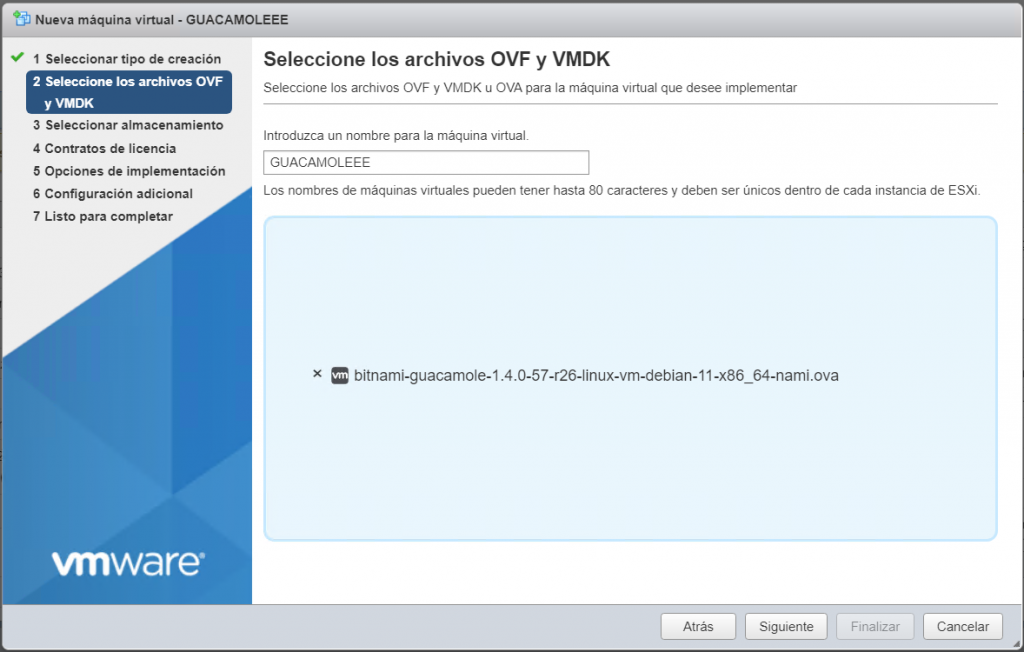
Name the VM, select the downloaded OVA, and click Next.
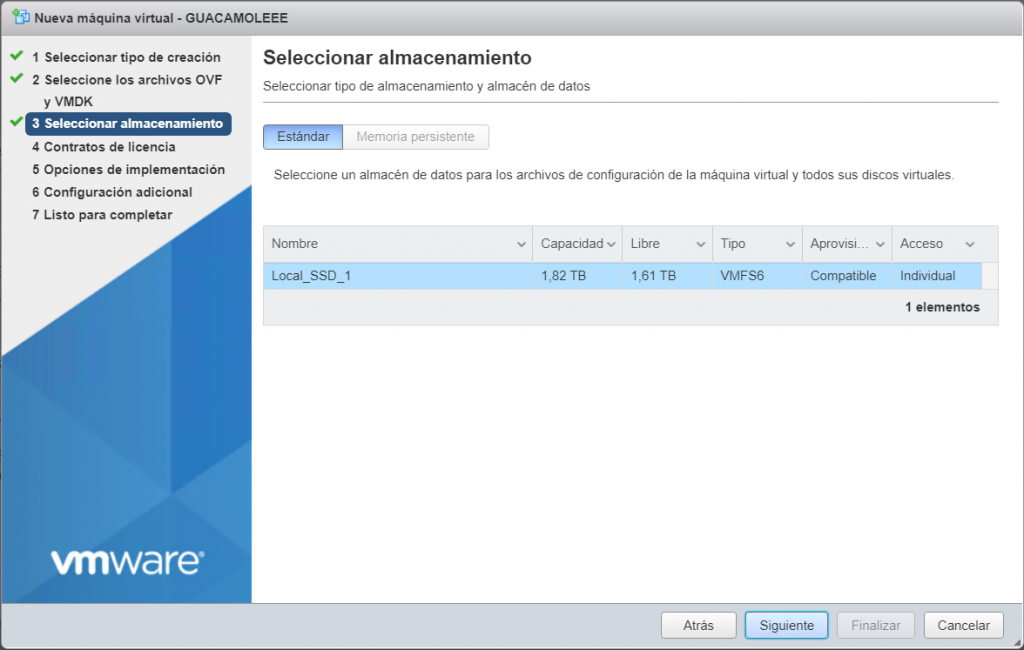
Select the datastore where you want to deploy it, then click Next.
Select the network to connect it to and the disk provisioning option.
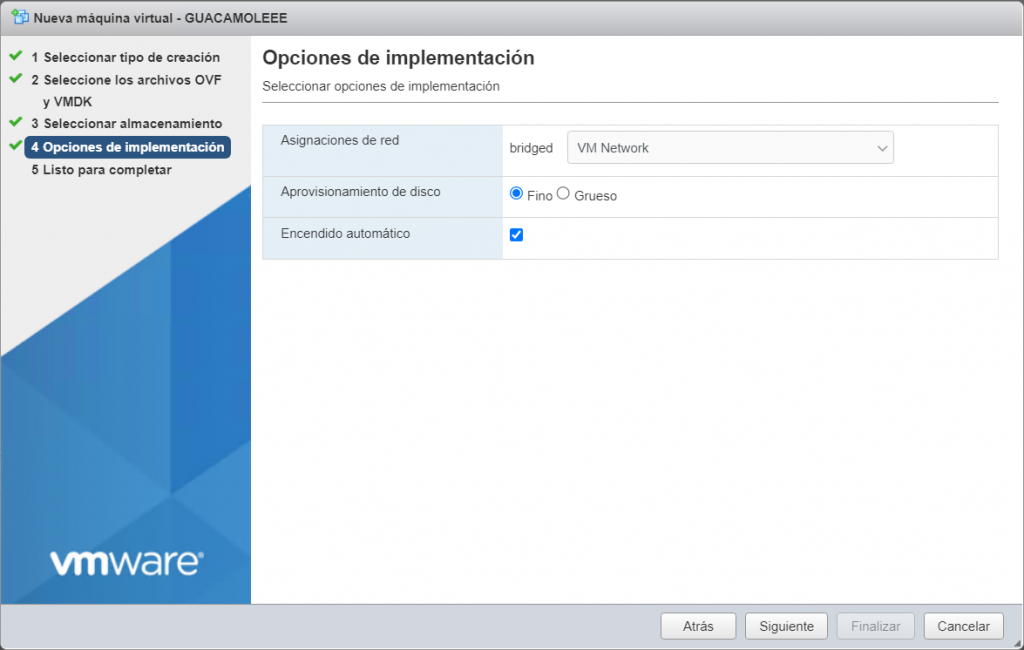
One detail: select a network that lets you reach the machines for which you’ll configure RDP, SSH, and VNC access.
Review the summary and finish.
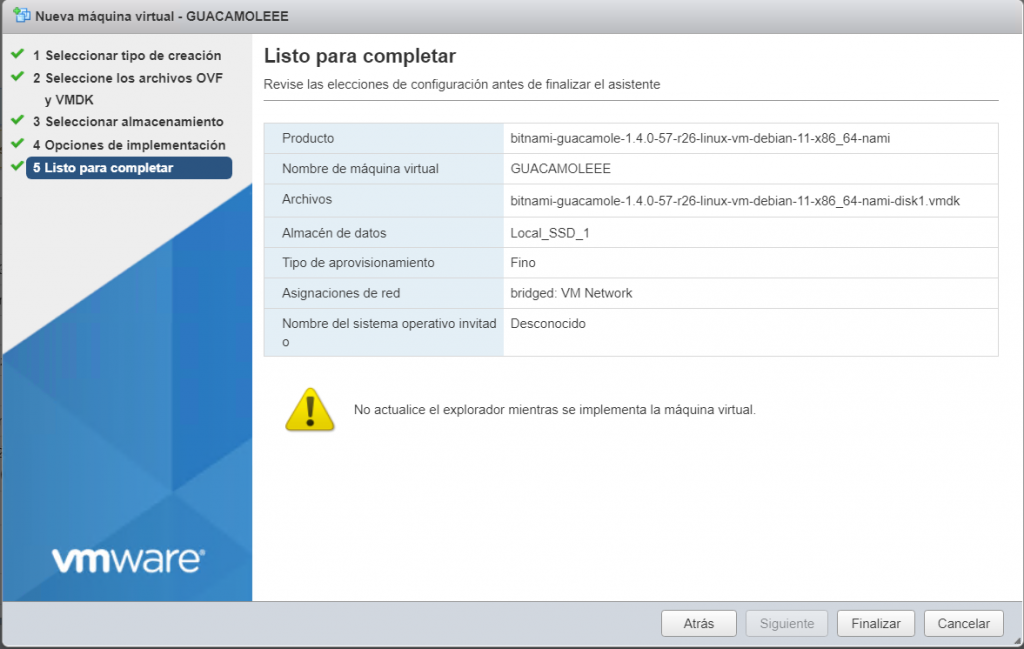
After deployment, open the vSphere console to perform the initial setup.

Open the remote console.
Sign in to the console with the username bitnami and password bitami.

It will ask you to change the password after signing in.
If you want to configure a static IP address for your appliance, follow these instructions.
Now let’s secure it with a Let’s Encrypt SSL certificate.
To do this, we’ll use Bitnami’s Let’s Encrypt SSL tool
As a prerequisite, open ports 80 and 443 to the appliance’s IP address.
If you configured a static IP earlier, or a DHCP reservation, make sure those ports are open.
In the Apache Guacamole console, run this command:
sudo /opt/bitnami/bncert-tool
The process takes a couple of minutes. It will ask for the fully qualified domain name (FQDN) where Apache Guacamole is published (Domain List), for example, guacamole.yourdomain.com.
The domain must point to the public IP address where Apache Guacamole is published.
Answer the simple prompts:
Redirect HTTP to HTTPS: Yes
Email address for notifications
Accept the changes
Then finish.
Here is the final process summary:
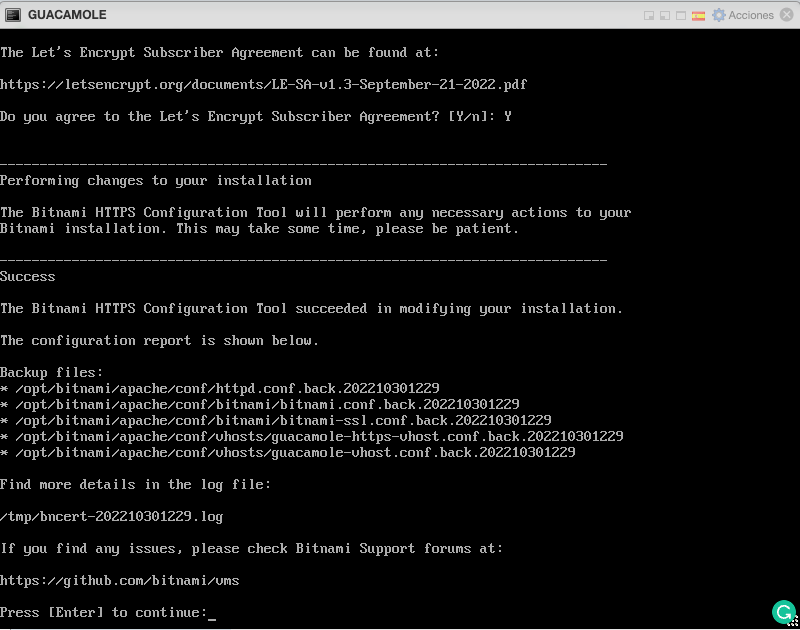
The process restarts the required services and enables Apache Guacamole over SSL!
We now have secure web access!
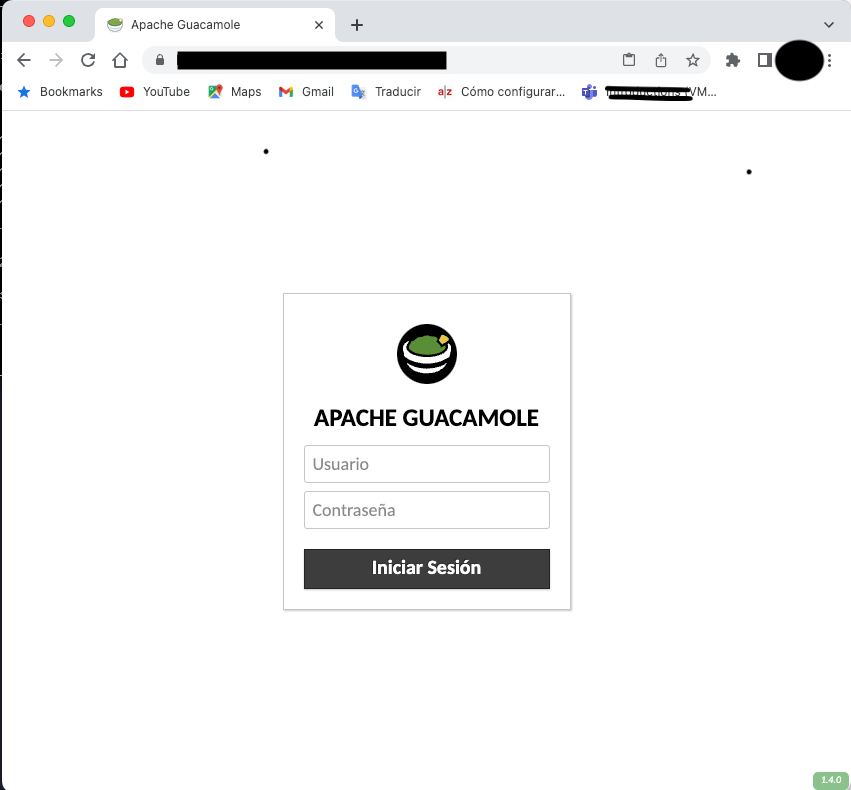
In the next post, I’ll show you the console and how to add an RDP and SSH connection.
Regards!