
After remodeling the lab, which became a “clean slate,” I missed having a DNS server. I wanted a simple DNS server for testing and internal name resolution, and a little filtering at home.
My first thought was a Windows Server, but that seemed like too much for a VM that would need to run all the time. I want to be able to shut down the lab to save power (and avoid getting kicked out of the house!).
So I looked around and—boom!
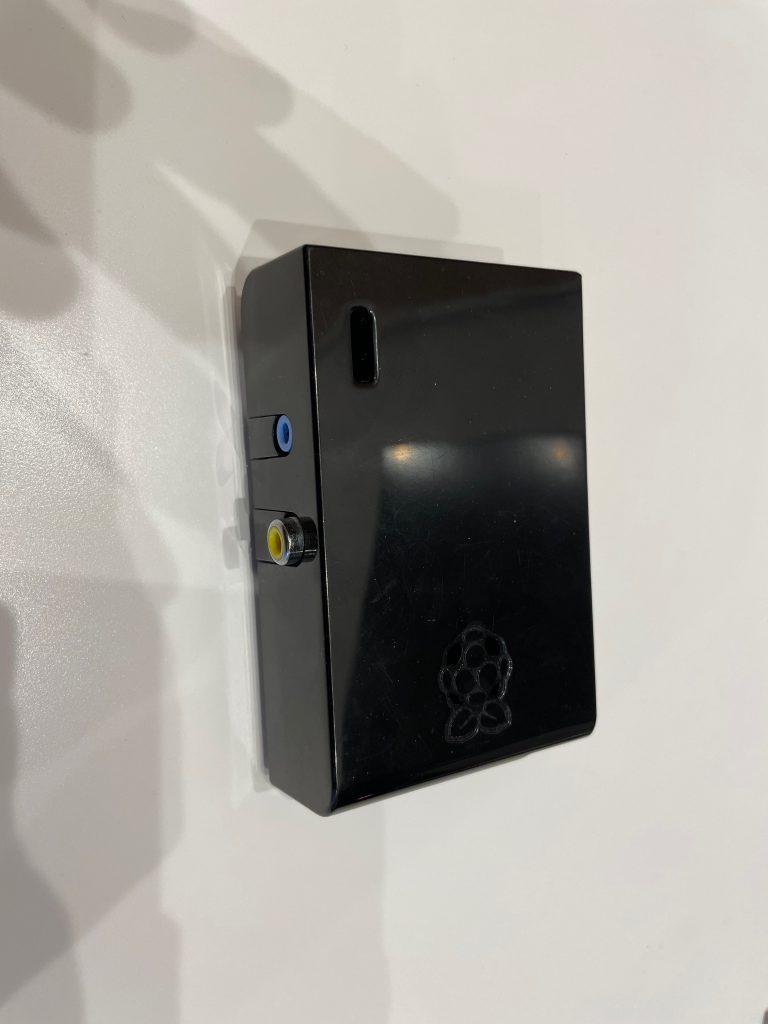
I thought: if all I need is DNS, something quiet and low-power, maybe I can get this running…
My trusty Pi booted, so now I needed to find a “large” SD card.
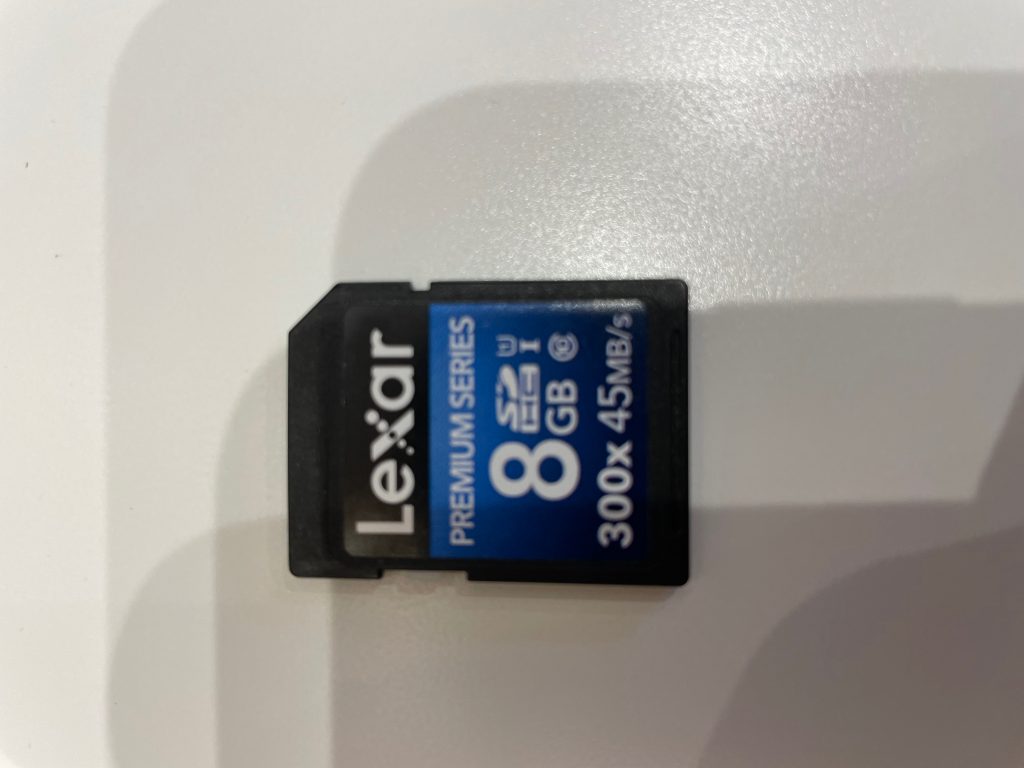
All that was left was downloading the app to prepare the card. Since I use a Mac,
we’ll use Raspberry Pi Imager:
https://www.raspberrypi.com/software/
Once installed, open it, insert the card, and simply choose the image, destination, and device to filter the options.
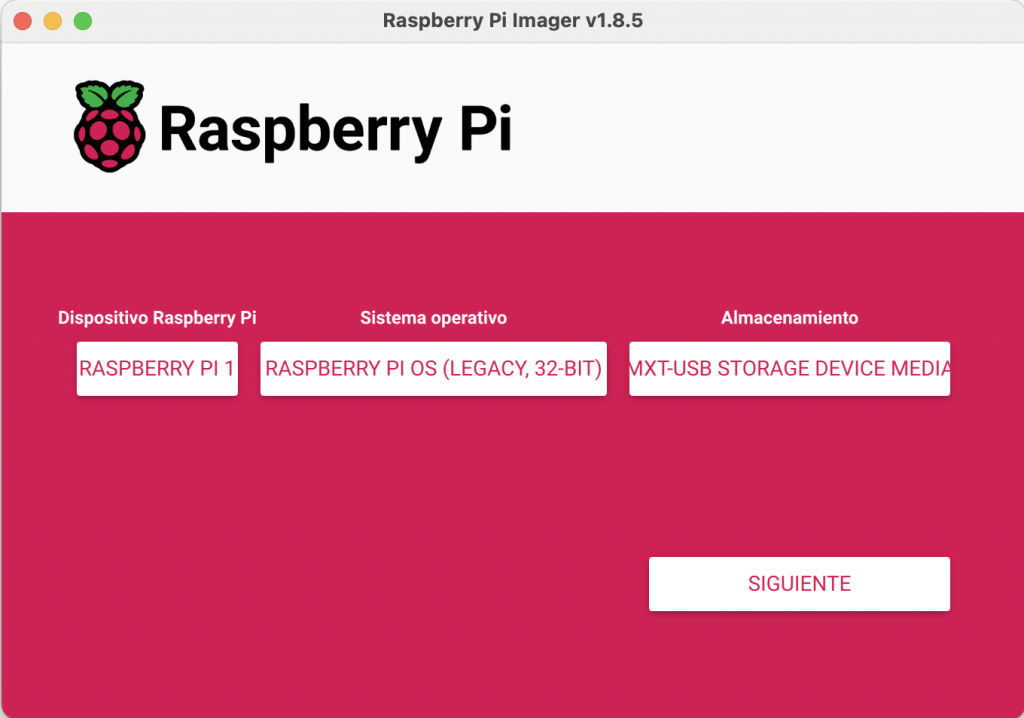

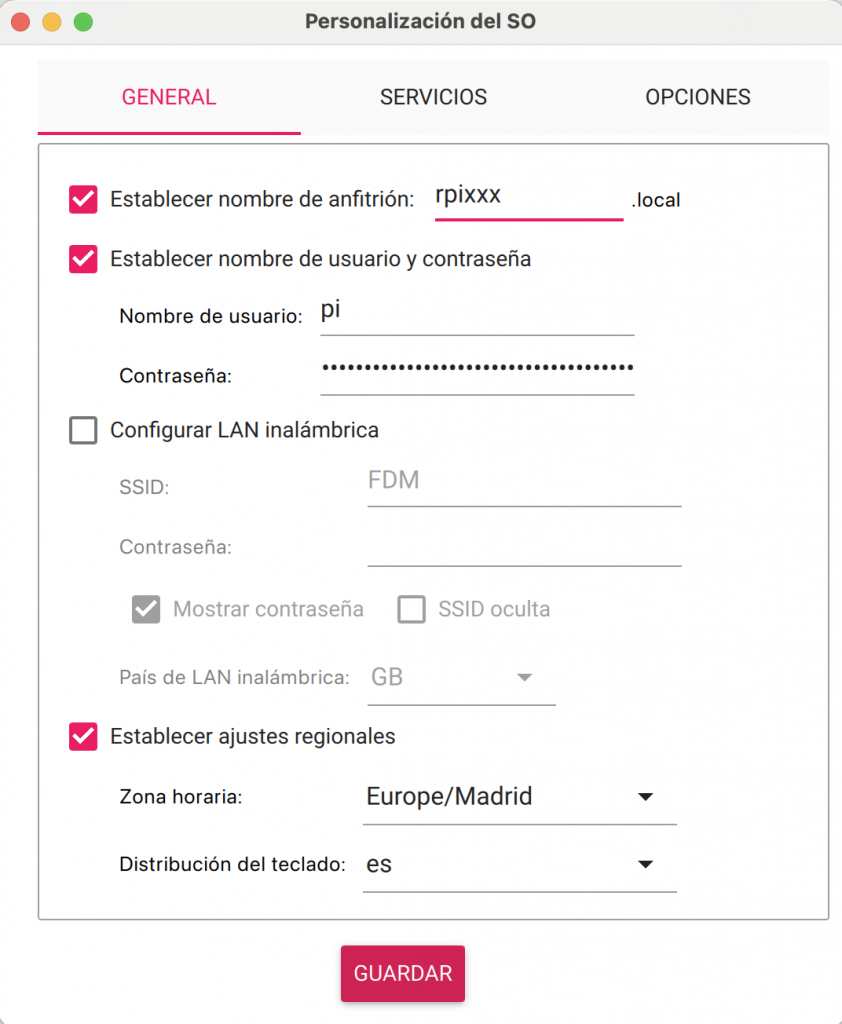
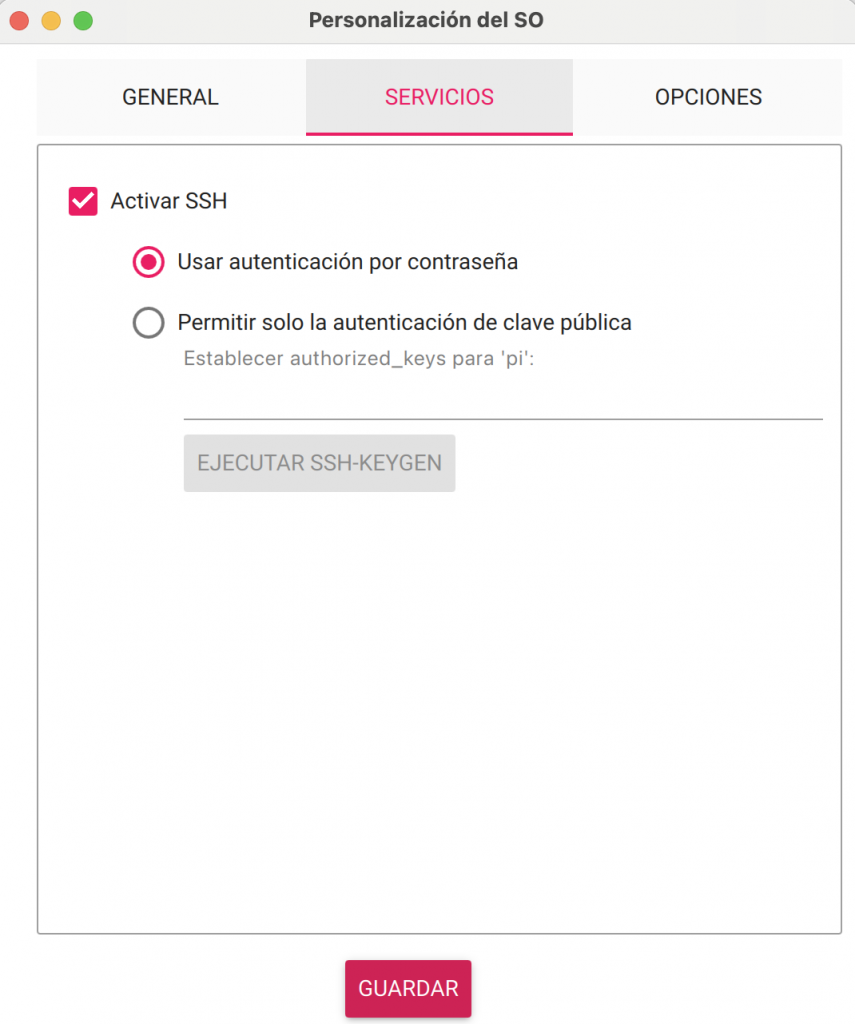
Once the card is ready, plug it in and boot the Pi!
And voilà! It booted!
Now SSH into the Pi and start installing Pi-hole.
Go to the website and run the installation command with sudo:
https://docs.pi-hole.net/main/basic-install/
curl -sSL https://install.pi-hole.net | bashLet’s do it!
After a few simple steps, you’ll reach a final screen showing the password for the web console. Save it, because it disappears; if you need it later, you’ll have to reset it.
Read the prompts. They’re straightforward, such as whether to install the web administration console.
The wizard also lets you assign a static IP address to the Raspberry Pi or leave it on DHCP. The choice is yours. I set a static IP because I plan to use it as a DHCP server later too!
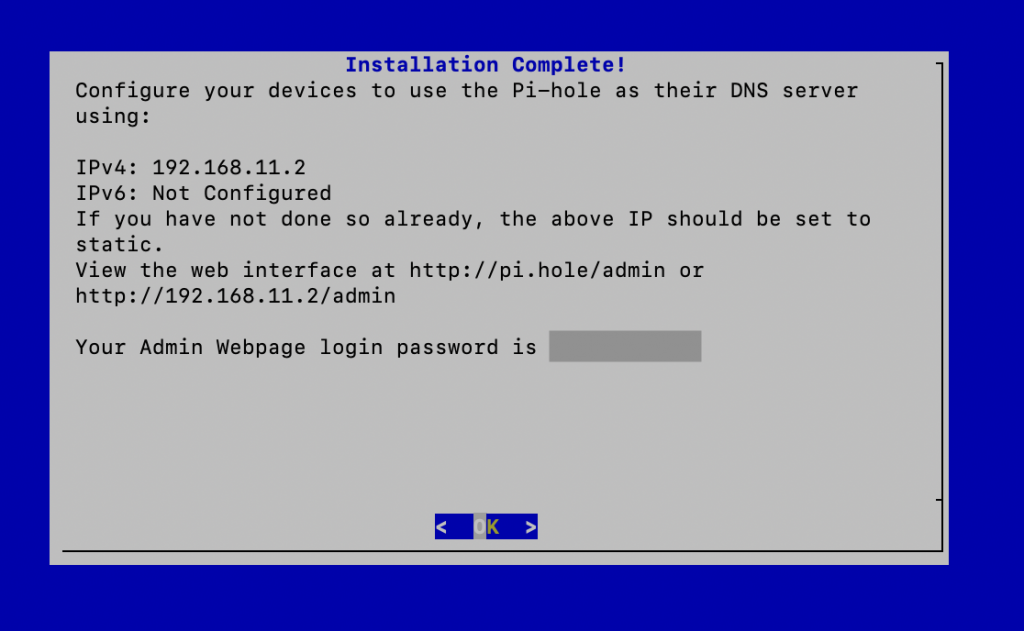
Open the console, and it should look like this:
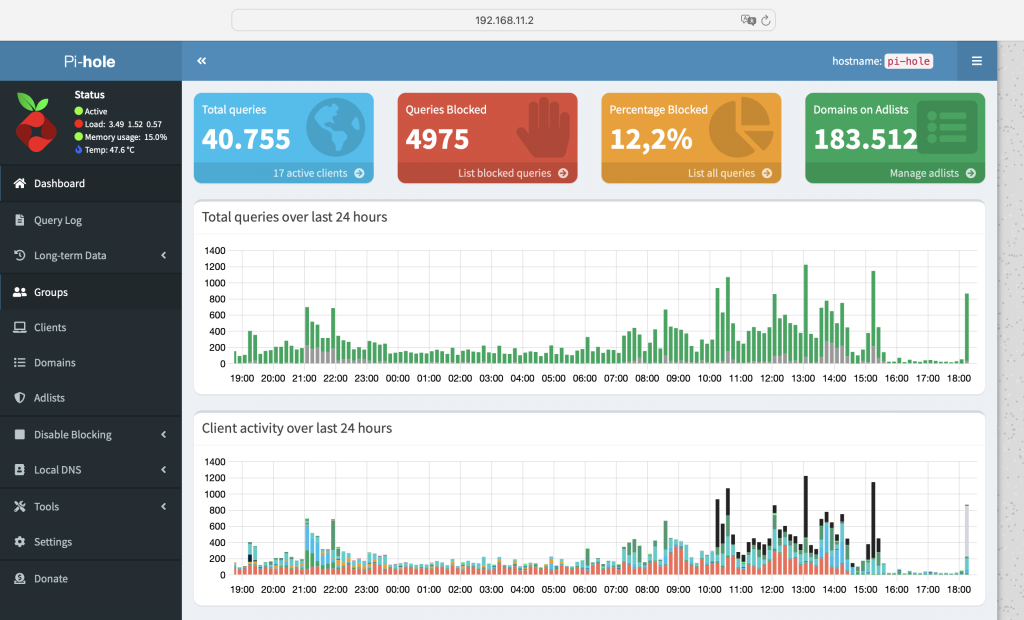
Now change the DNS server handed out by your DHCP server to the Pi-hole’s IP address,
and you’re up and running.
It’s intuitive and easy to use.
You can enable several DNS providers, such as Comodo, OpenDNS, and Google.
You can block domains from adlists, add your own blocked domains, create custom DNS entries, and more…

It’s great.
Regards.